





Looking to boost your app's visibility and acquire more users? Our 2025 ASO Report is your ultimate guide to navigating the evolving app store landscape. Packed with data-driven insights, keyword trends, and top-ranking app strategies, this report will equip you with the knowledge to optimize your app's presence and achieve organic growth.
Google Play store listing experiments are one of the most reliable ways to improve how your app converts store visitors into installs. Instead of guessing what title, icon, screenshots, or description will work best, you can run structured A/B tests inside Google Play Console and compare performance between variants. This helps you make decisions based on data rather than assumptions.
In this blog post, you’ll learn how Google Play store listing experiments work, when to use them, how to set them up, and how to read the results. You’ll see how each part of your store listing can be tested to improve conversion rate, downloads, and visibility.

What are Google Play store listing experiments?
Google Play store listing experiments are A/B tests that you run inside Google Play Console to compare different versions of your store listing. You create multiple variants of a specific element, and Google Play shows those variants to new visitors, so existing users are not affected. Traffic is automatically split between variants, usually in equal distribution. Once the experiment runs long enough and has collected enough data, Google Play identifies whether a variant is likely to outperform the control.
These experiments help you improve your Play Store conversion rate, install volume, and user acquisition without changing your app’s functionality. They can be done continuously, and many teams run them as part of their optimization workflow.
When and why to use Google Play store listing experiments
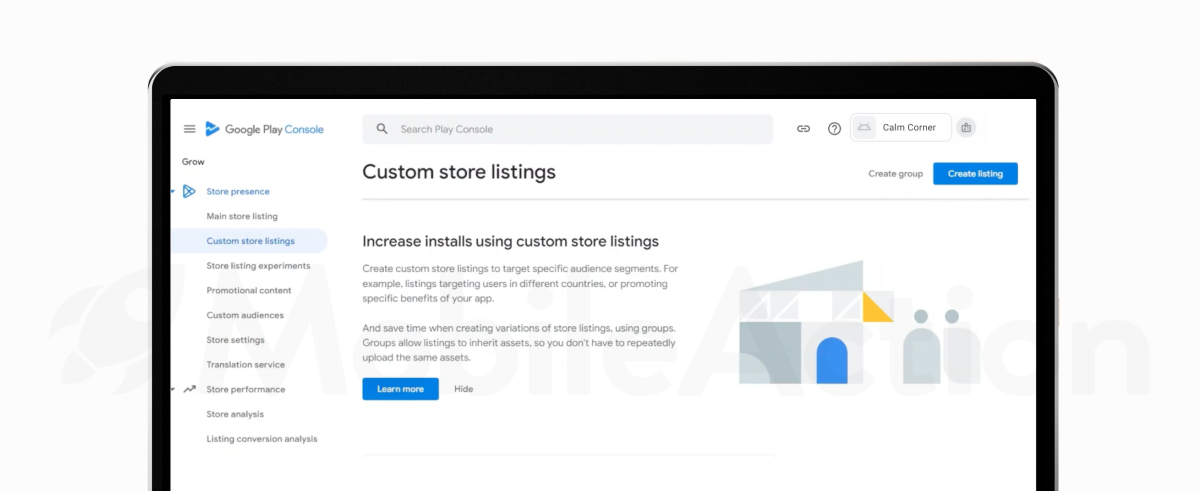
You should use Google Play store listing experiments whenever you want to understand which store listing elements influence conversion.
Common situations where Google Play experiments are useful:
- Your conversion rate is low or trending down. An experiment helps confirm whether visuals or copy are reducing installs.
- You have a new creative direction. If you redesigned your screenshots or icon, testing before applying globally protects your performance.
- You want to expand into new markets. Localized variants can be tested to understand which language or positioning works best.
- Competitors have changed their messaging. When other apps adopt new visuals or benefits, testing similar angles can help you stay competitive.
- After major app updates. New features may require new messaging. Experiments help validate whether users understand the value.
Running experiments is especially important before making large changes. Applying an untested design, description, or icon can reduce installs in ways that are hard to reverse.
Experiments are also useful when planning ASO strategy. They reveal which angles and benefits are most persuasive to users. These learnings can be applied to metadata updates, ad campaigns, and even product messaging.
Requirements and limits for store listing experiments in Google Play Console
Before running Google Play store listing experiments, it’s helpful to understand the requirements and limits. These ensure that tests are valid, trackable, and safe for your audience.
1. Traffic and eligibility
Experiments need enough visitors to produce reliable data. Only signed-in Google Play users are included. Users who aren’t logged in always see the original listing.
2. One experiment type at a time
For each app, you can run:
- One default graphics experiment, or
- Up to five localized experiments
You cannot run more than one default graphics experiment at the same time. If you start the wrong experiment type, you can stop it and create a new one.
3. Testing one attribute at a time
For clear results, Google Play recommends changing one component at a time (for example, icon or screenshot). Testing too many elements together makes it impossible to know what caused the outcome.
4. Audience allocation
You choose the percentage of traffic that goes into the experiment. All variants share this audience equally. Remaining users continue to see the current listing.
5. Languages and exclusions
Default graphics experiments exclude users who see localized assets. Localized experiments only target the languages you select.
6. Duration
Experiments should typically run for at least seven days, even if you have enough data before that.
7. Termination and deprecation
Older tests using deprecated metrics may be stopped automatically. New experiments measure:
- First-time installers
- Retained installers (1-day)
These metrics provide more reliable insights.
These ensure that Google Play store listing experiments produce accurate insights, avoid misleading results, and stay aligned with how Play Console manages store traffic.
Types of Google Play store listing experiments explained
Google Play Console supports two main types of store listing experiments: default graphics experiments and localized experiments. You can only run one type at a time.
Default graphics experiments
These experiments test visual assets only for users who see your main store listing. They cover:
- App icon
- Feature graphic
- Screenshots
- Promo video
Text elements are not included. Users with localized graphics are excluded. This type is useful when you want to measure how a new visual style performs at a global level.
Localized experiments
Localized experiments target users who view your listing in specific languages. You can run up to five localized experiments at once, and you can test graphics, descriptions, or both.
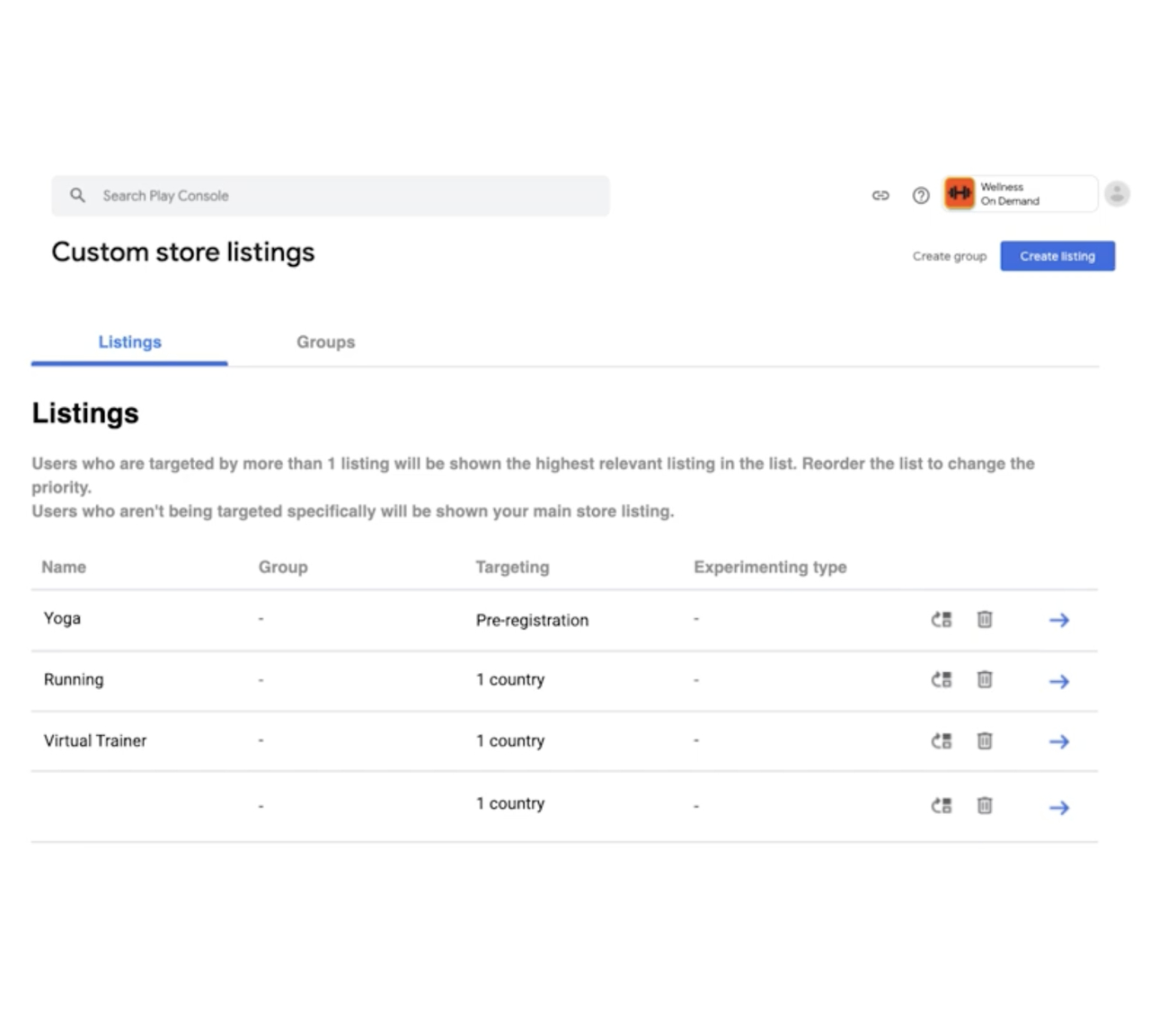
✴️ Pro tip: Both experiment types can also run on Custom Store Listings, where only users who are eligible to see that CSL are included in the test. The experiment logic stays the same, users are split between the current listing and one or more variants.
Play Console also offers price experiments for in-app products. These tests use different price points in different markets to understand purchasing behavior. They are separate from store listing experiments and follow their own workflow.
What to test in Google Play store listing experiments
Store listing experiments can test any element that influences how users perceive your app before installing it. The goal is to identify which visual or textual changes result in more installs and retained users.
The most common elements to test include:
- App icon: The app icon is often the first thing users notice in search results, category browsing, and ads.
- Feature graphic: The feature graphic appears at the top of your store listing and is highly visible.
- Screenshots: They help users understand what the app does. Focus on clarity and the main benefit.
- Promo video: If you use a promo video, test whether it influences installs more than static screenshots. You can experiment with pacing, duration, or which features are shown first.
- Short description: It is visible without scrolling. Test different benefit statements, calls to action, or wording.
- Full description: For localized experiments, you can test the long description in different languages. Make sure to keep the structure and tone consistent with policy guidelines. Do not repeat the short description or use large blocks of keywords.
- Localized assets: Users in different countries or languages may respond better to different images, colors, or copy styles. Localized experiments allow you to test this without affecting all users.
- Pricing (separate workflow): Pricing tests are not part of store listing experiments. However, Play Console provides price experiments to test different price points for in-app products by region.
How to set up a Google Play store listing experiment step by step
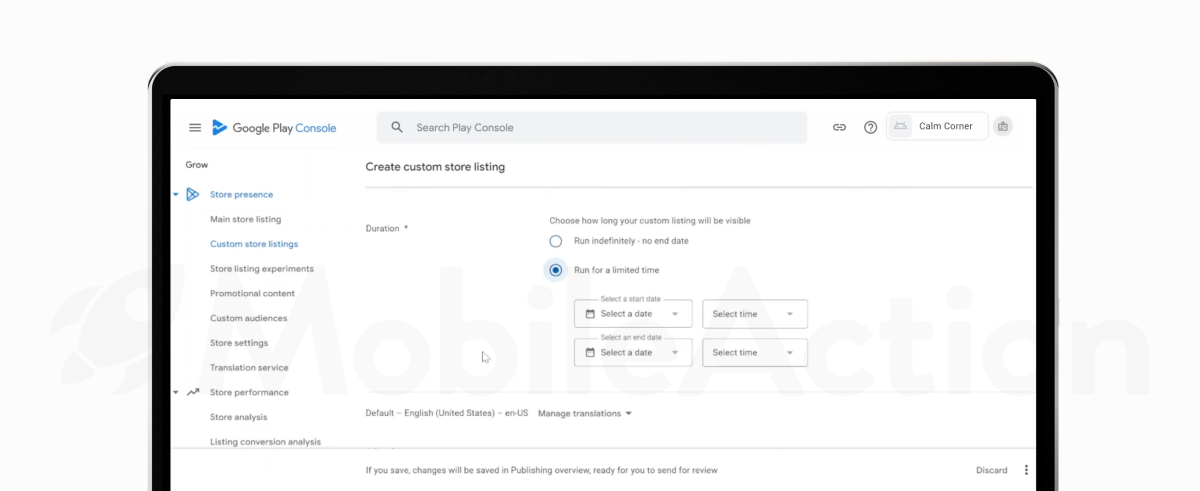
Setting up a store listing experiment is done in the Play Console. The goal is to define what you want to test, pick the right audience, and run the experiment long enough to collect reliable data.
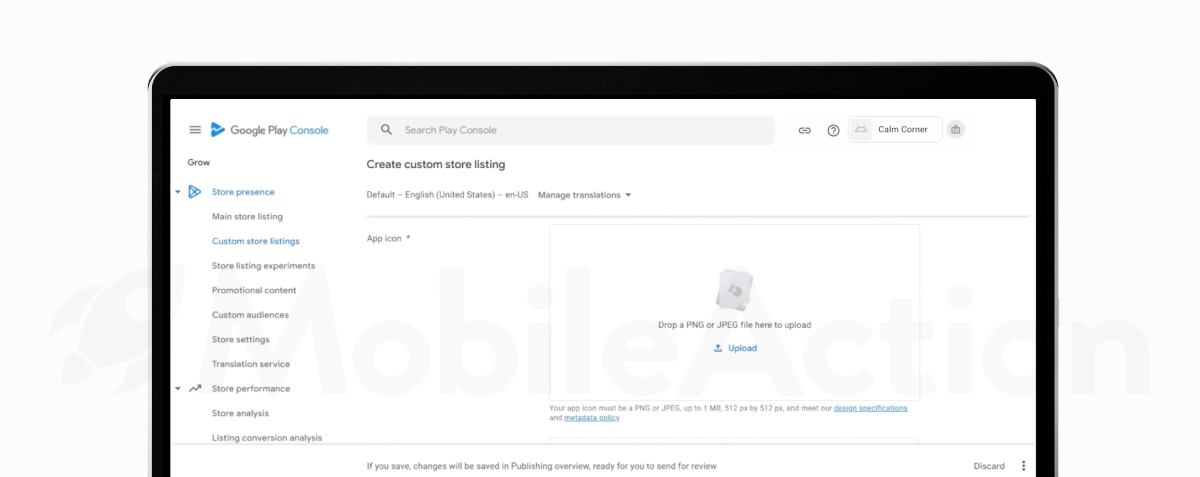
1) Go to the Store listing experiments page
Open Play Console and navigate to:
Grow users → Store presence → Store listing experiments
Select Create experiment to start.
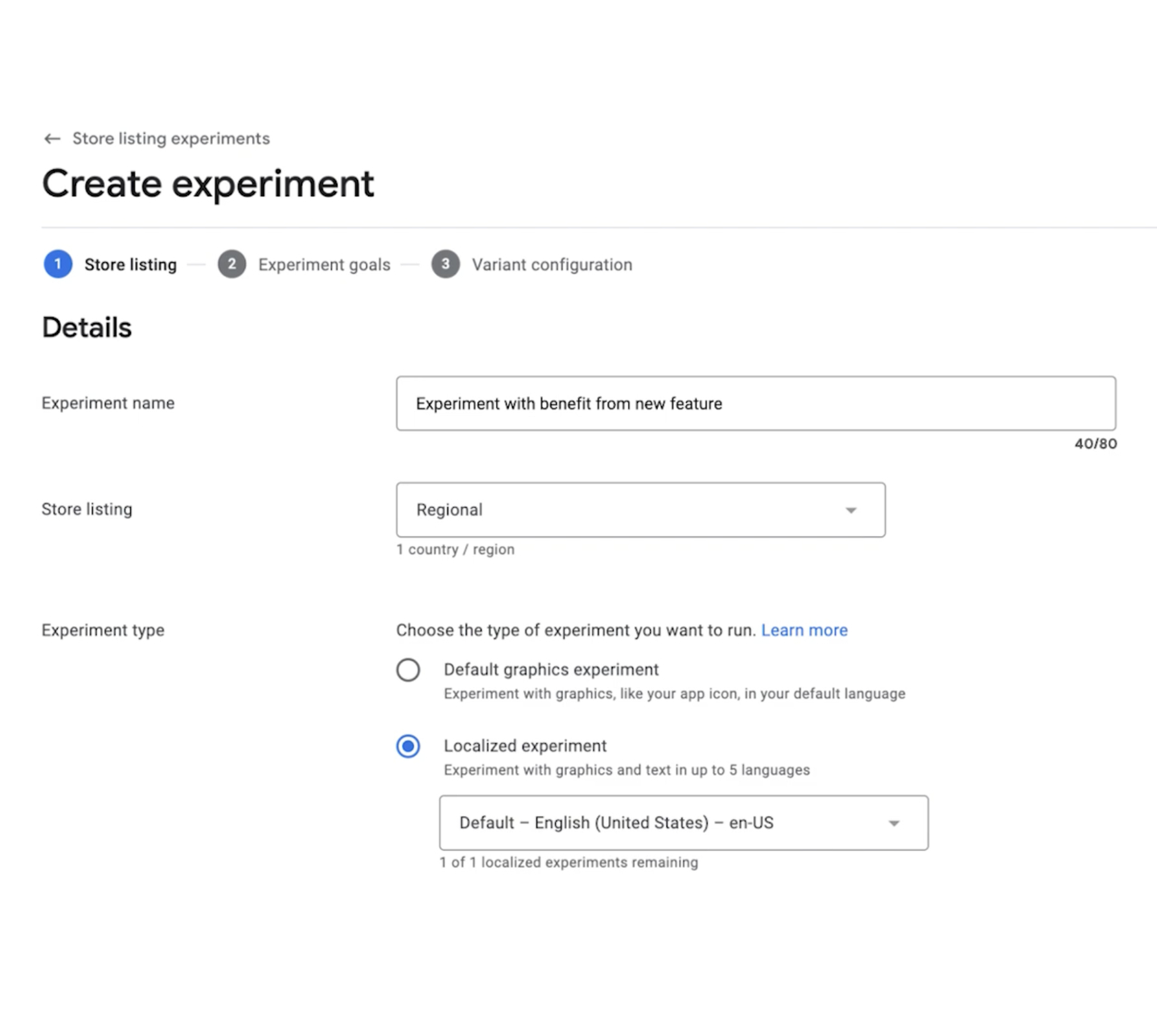
2) Enter experiment details
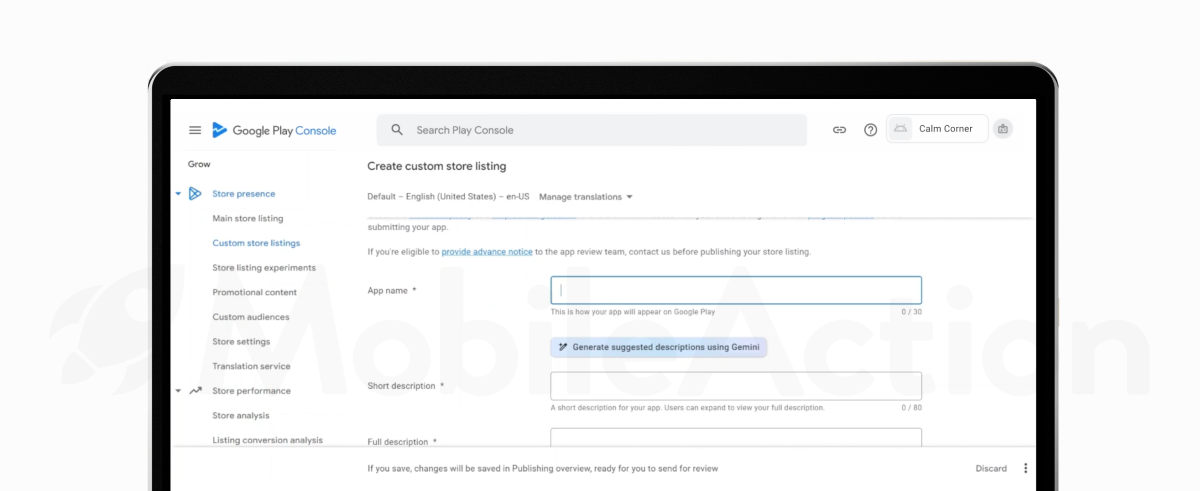
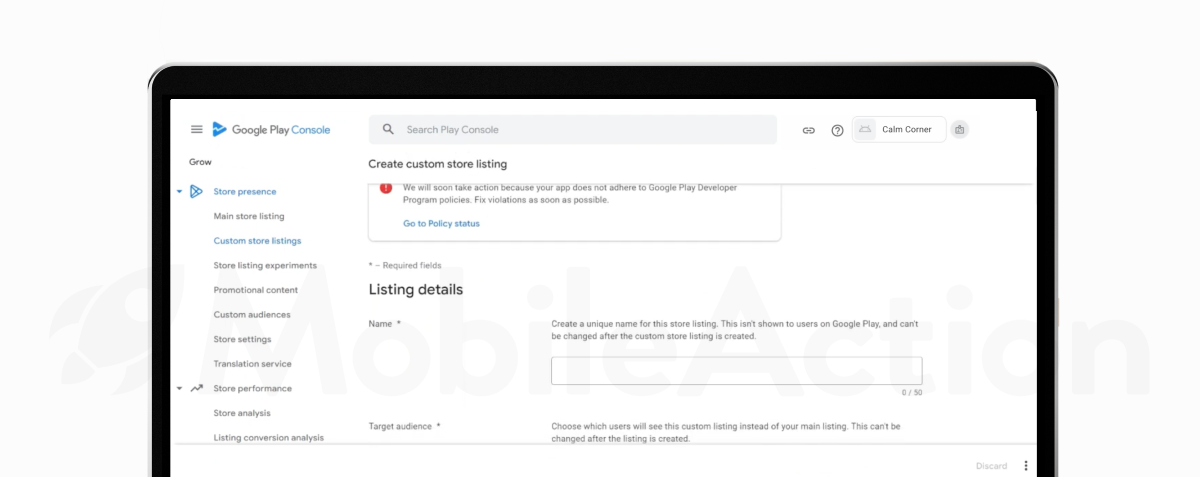
Give your experiment a name that clearly explains what you’re testing. This name is only visible inside Play Console, so you can call it something like “Icon with letter vs face” or “Feature graphic with character.”
Next, choose which store listing you want to experiment on:
- Main store listing
- Custom store listing
Then pick the type of experiment:
- Default graphics experiment
- Localized experiment
3) Select experiment goals
Choose the metric that will determine the winner:
- Retained first-time installers (recommended): installs that are kept for at least one day
- First-time installers: all first-time installs, even if they uninstall quickly
You’ll also set a few extra options:
- Confidence level
- Minimum detectable effect
- Estimated daily visits and conversion rate
These settings affect how long your test will need to run and how reliable your results will be.
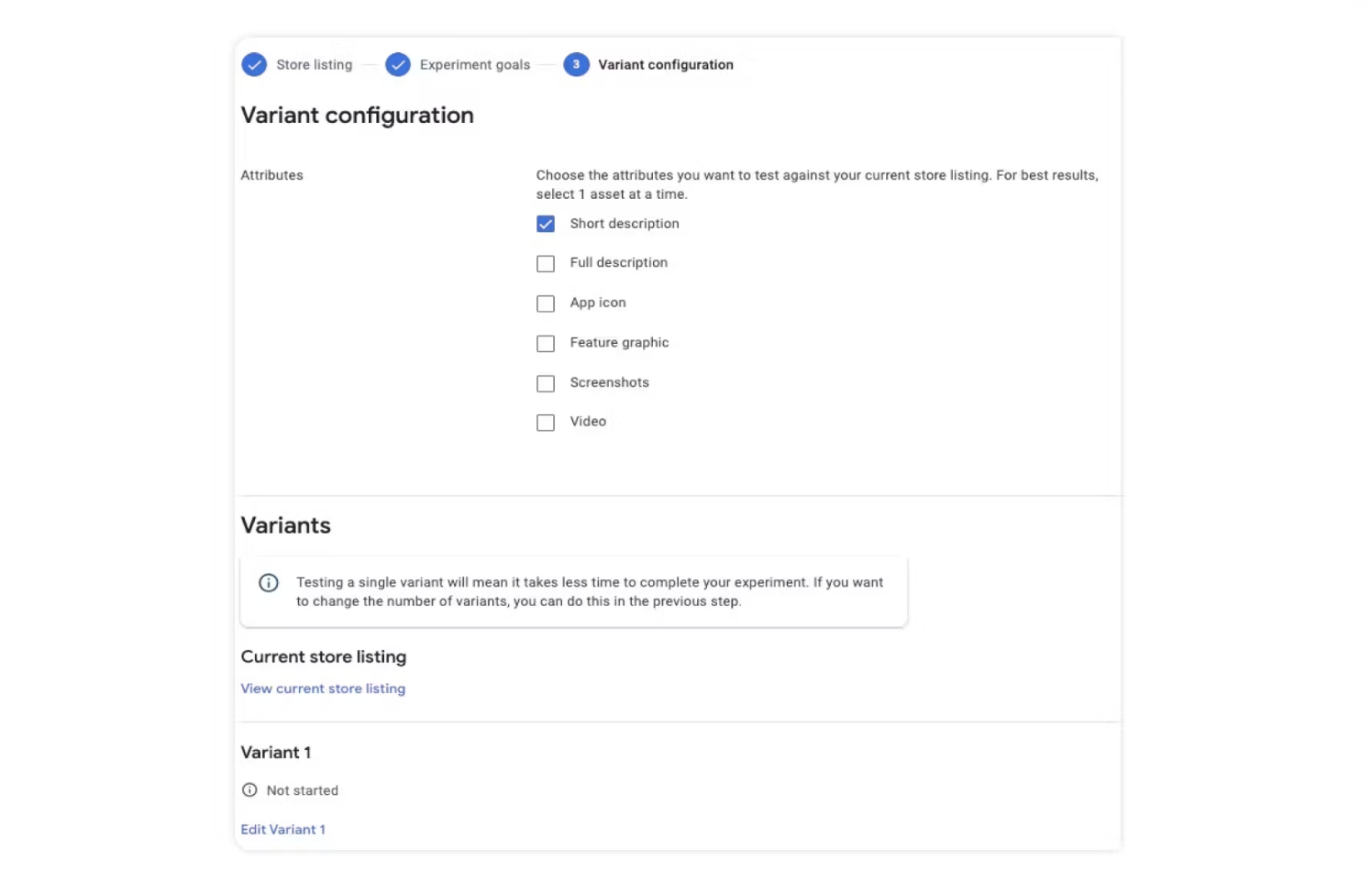
4) Choose the attributes to test
Pick the specific elements you want to experiment with:
- App icon
- Feature graphic
- Screenshots
- Promo video
- Short description (localized only)
- Full description (localized only)
Test one attribute at a time so that your results are clear. If you change multiple elements at once, it becomes difficult to know which change caused the result.
5) Add your variants
You can add up to three variants, plus your current listing as the control. Keep in mind: more variants mean slower results because your traffic gets split.
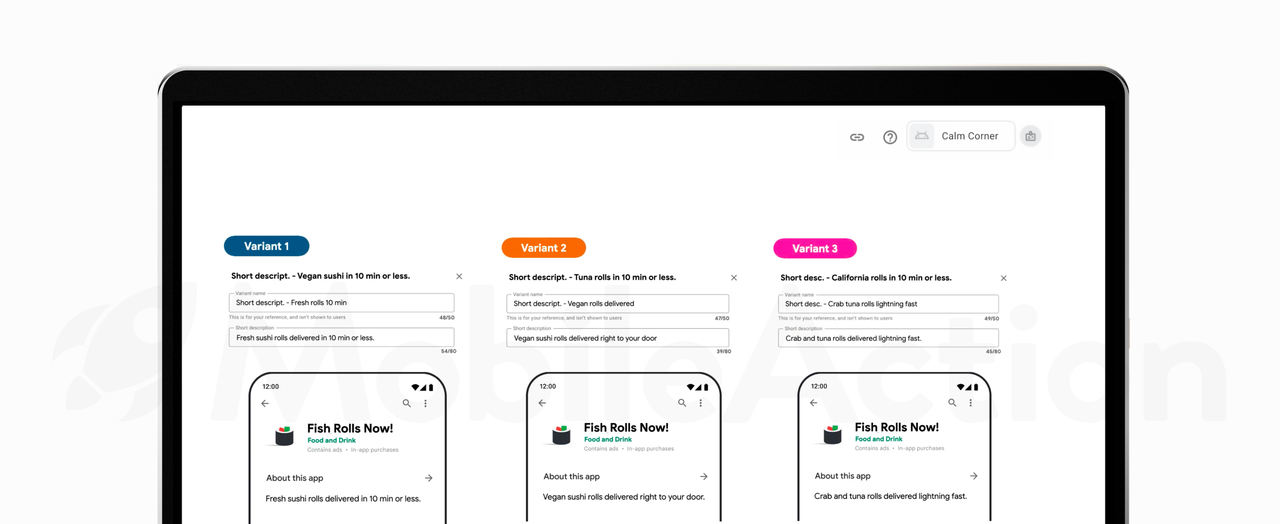
A few examples:
- Three different icon ideas
- Alternate screenshot headlines
- Two versions of a feature graphic
You’ll be able to preview each variant right inside Play Console.
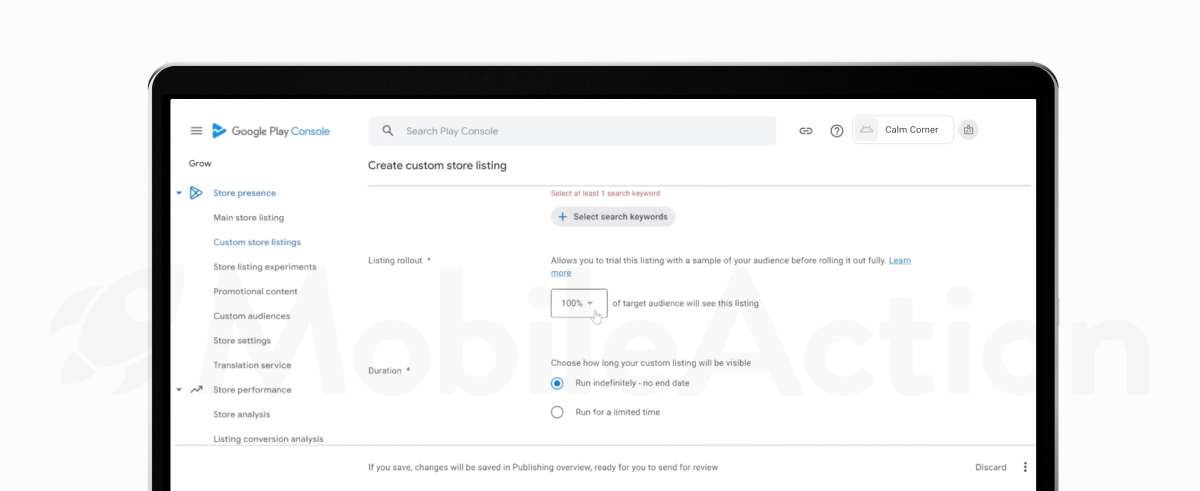
6) Define the experiment audience
Choose how much of your traffic should see the experiment.
A simple A/B test could look like:
- 50% current version / 50% variant
If you’re testing something risky, you can show the variant to fewer people:
- 10–20% variant / 80–90% current
Each user is locked into one version for the whole experiment, even if they come back later.
7) Start the experiment
Click Run experiment when you’re ready. If you need more time, hit Save and finish later.
8) Let the experiment run long enough
Try to let your test run for at least seven days, even if you see early results. This helps you capture both weekday and weekend behavior.
If your app doesn’t get a lot of traffic, you may need to keep it running longer.
9) Review results and take action
Open your experiment to see what happened. You’ll find:
- Which variant performed best
- Performance ranges
- Confidence intervals
- A recommended action
From here, you can:
- Apply the winning variant
- Keep your current listing
- Let the experiment run longer if needed
If multiple variants look strong, pick the one that best supports your long-term goals.
Configuring experiment parameters for reliable results
When you run a store listing experiment in Play Console, you select a series of settings that influence how the experiment runs and how results will be calculated. These settings appear during setting up your experiment and must be entered before starting the test.
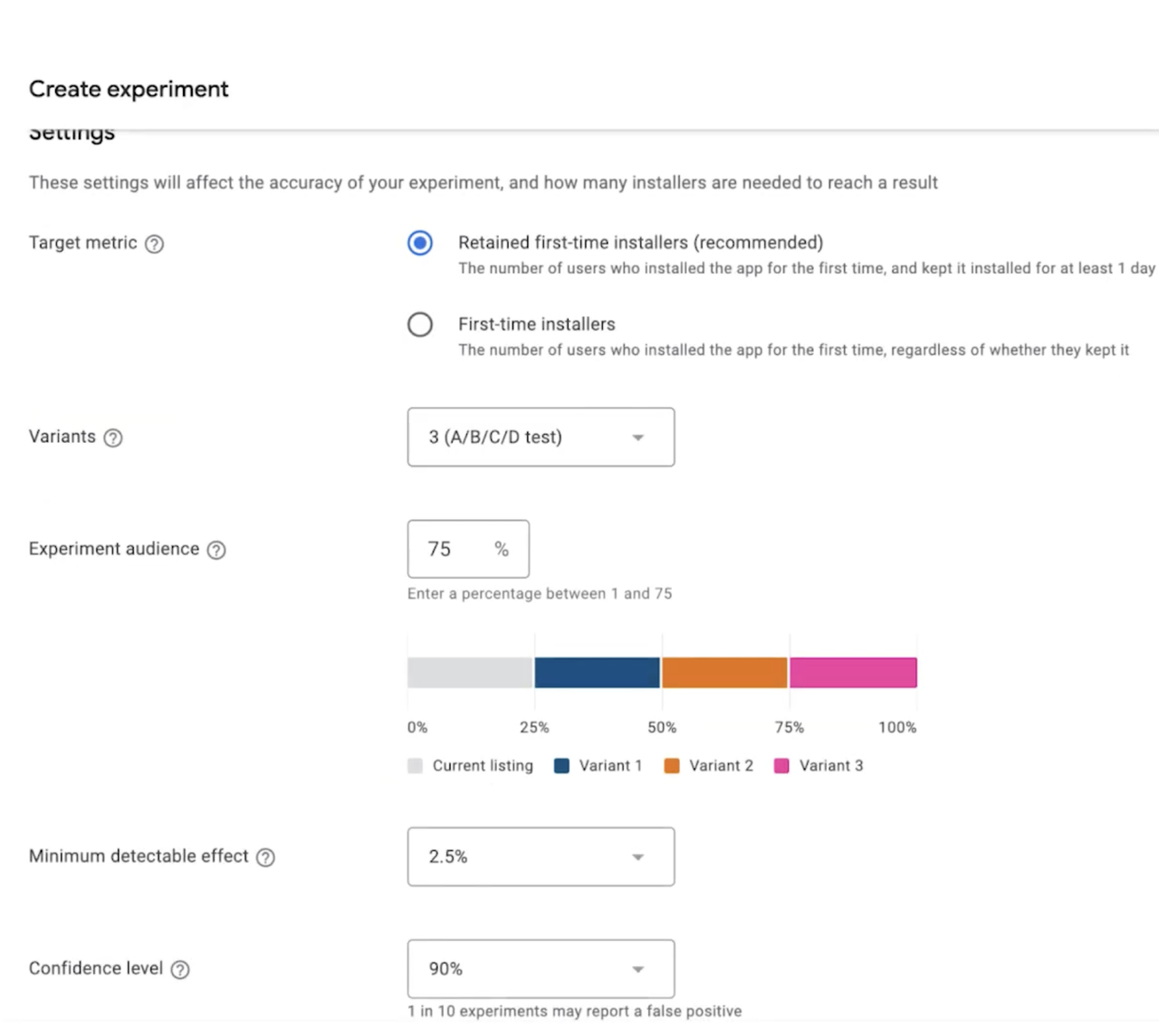
Target metric
The target metric is the measurement used to determine the experiment result. You choose one:
- Retained first-time installers (recommended). Users who installed the app for the first time and kept it for at least one day.
- First-time installers. Users who installed the app for the first time, regardless of retention.
Your chosen metric appears in the results summary and determines which variant performs best.
Variants
Variants are the versions of store listing assets used in your experiment. In Play Console, you can:
- Add up to three variants
- Test one attribute at a time
- Compare each variant to the current version
Experiment audience
The experiment audience controls how many visitors see experimental variants.
Example:
- If you set 30% audience
- And have two variants
- Each variant will be shown to 15% of visitors
Each user sees only one version during the experiment.
Minimum detectable effect (MDE)
MDE defines how large the performance difference must be to declare a winner. If the difference between the current version and a variant is smaller than the MDE, the experiment is considered a draw.
Confidence level
The confidence level indicates how often the confidence interval contains the true performance. For example:
- 90% confidence means one in ten experiments may report a false positive
Higher confidence increases accuracy but may take longer.
Estimates (optional)
If you click Edit estimates, you can provide estimated daily values to help Play Console calculate expected duration:
- Daily visits from new users
- Conversion rate
- Daily retained first-time installers
- Daily first-time installers
These estimates do not change the result logic, they only affect the time estimate.
Starting the experiment
After parameters are set:
- Select Run experiment to begin
- Or select Save to finish later
Users not logged in to Google Play will not see variants. The experimental group continues to see the same variant until the experiment stops.
After setup, Play Console begins collecting install data. Next, you can review metrics to understand performance and decide whether to apply a winner.
Understanding Google Play store listing experiment metrics
When your experiment is running, data appears in the Results section. These metrics help you compare each variant to your current listing and decide which version performs better.
How metrics are displayed
Metrics are shown in two formats:
- Current. Actual number of unique users
- Scaled. Users divided by audience share
Scaled values allow fair comparison when variants received different levels of traffic.
Key user metrics
Two user metrics summarize how each variant performed:
- First-time installers. Unique users who installed your app for the first time.
- Retained installers (1-day). Unique users who installed the app and kept it for at least 1 day
These data points are scaled to account for audience share.
Variant data
Each variant row includes:
- Audience: percentage of users who saw that variant
- Installers (current): unique first-time installers
- Installers (scaled): installers divided by audience share
- Retained installers (current)
- Retained installers (scaled)
You can click the preview icon to see the asset shown to users (icon, screenshots, etc.).
Performance
Performance provides the estimated change in install behavior compared to your current listing.
Example: A performance range of +5% to +15% means the true value is likely between those numbers.
Result and recommended action
When enough data is available, Play Console will recommend one of the following:
- Apply winner
- Keep current listing
- Leave running to collect more data
- Draw
The recommendation is based on:
- Target metric
- Confidence interval
- Minimum detectable effect
If multiple variants performed well, you can review previews and decide which one to apply. If the current listing performed best, select Keep current listing.
Best Practices for high-impact Google Play store listing experiment
Successful Google Play store listing experiments are built on a structured approach. When you follow consistent principles, your store listing A/B tests produce reliable results, making it easier to apply changes that increase installs and conversion.
Start with a clear objective
Every Google Play experiment should begin with a specific question. This helps you avoid guessing and ensures that the result is actionable. Testing without a clear goal often leads to unclear results.
Test one variable at a time
A common mistake in Play Store listing experiments is testing too many elements in one run. When multiple changes are combined, you cannot identify which element caused the difference.
Avoid running store listing A/B tests that combine these elements all at once. A precise experiment tells you exactly what works.
Choose the right experiment type
Google Play Console supports several experiment types:
- Default graphics experiments: Used when you want to test creative assets visible to all visitors.
- Localized experiment: Used for localized text and graphics in specific languages. This is useful when positioning differs by market.
Split traffic equally across variants
When you run a Google Play store A/B test, you define the audience percentage. A balanced split makes comparison easier.
For example:
- Variant: 50%
- Control: 50%
Or, for three variants:
- 25% each + 25% control
If you are testing a higher-risk change, start with a smaller audience and expand later.
Allow experiments enough time
Google recommends running Play Store experiments for at least seven days. If traffic is low, you may need additional time before Play Console can determine a winner.
Use retained first-time installers as your main metric
You can choose between:
- First-time installers
- Retained first-time installers
For most Google Play store listing A/B tests, the recommended option is retained first-time installers because it focuses on users who install and keep your app for at least one day.
Review performance trends, not just totals
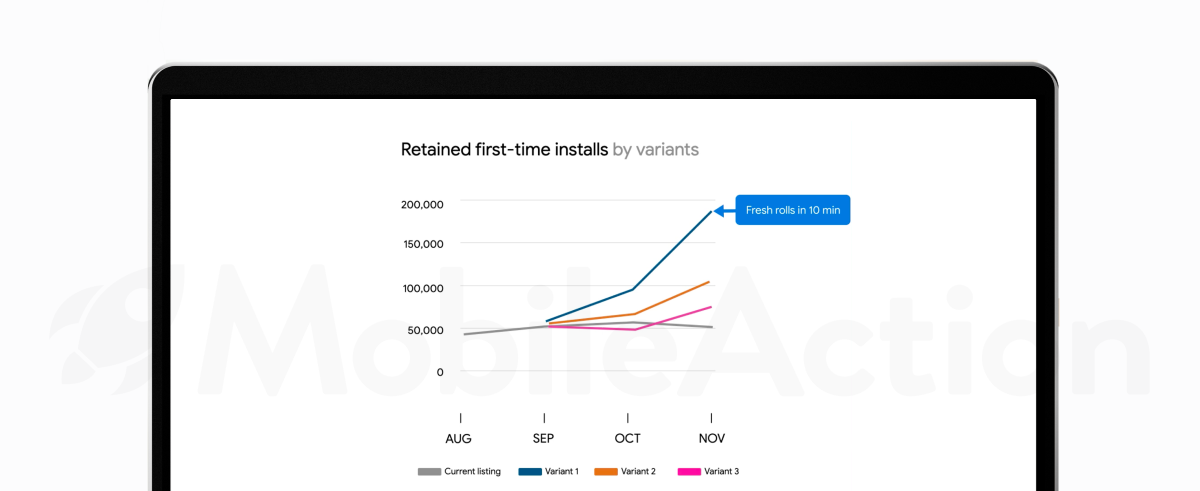
Play Console displays trendlines to show how each variant performs over time. They help you understand whether a result is stable.
Look for:
- Consistently above control → strong variant
- Converging lines → no meaningful difference
- Fluctuating lines → run longer
Trendlines are more informative than looking only at totals.
Apply winners and continue monitoring
Once a Google Play store listing experiment reaches a result, you will see one of these options:
- Apply winner
- Keep current listing
- Leave running to collect more data
- Draw
If a variant clearly outperforms the current version, apply it. After applying a winner, continue monitoring in:
- Store Analysis
- Listing Conversion Analysis
This will ensure the improvement is sustained after rollout.
Use ASO tools to prioritize what to test
Good hypotheses lead to stronger tests. You can use ASO tools to make these decisions based on real data:
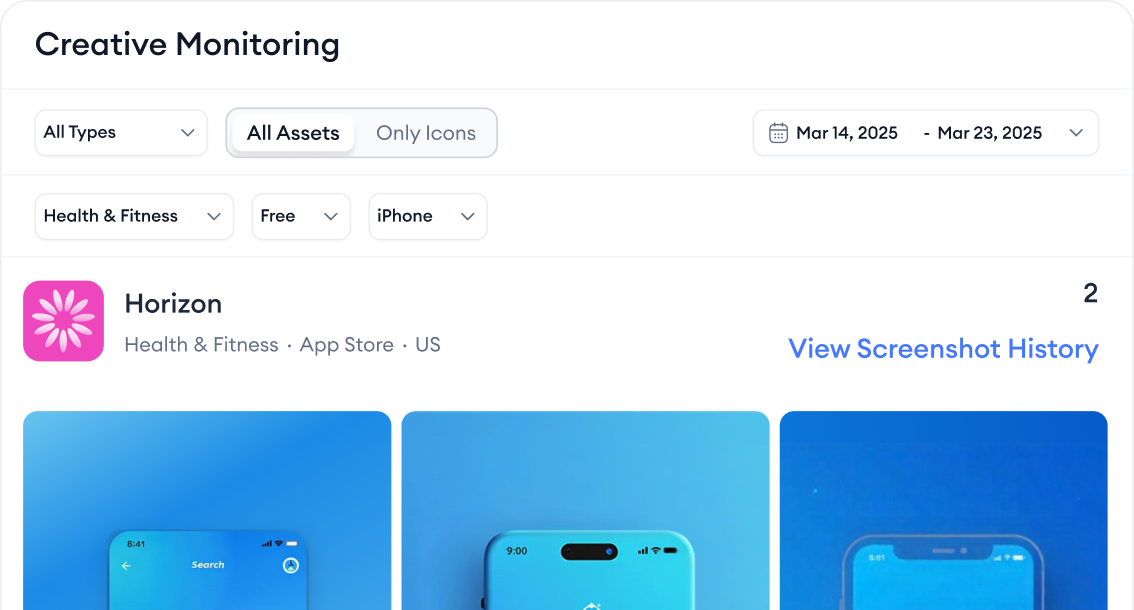
- Creative Monitoring: Review competitor icons, screenshots, and feature graphics across countries and categories before deciding what to test.
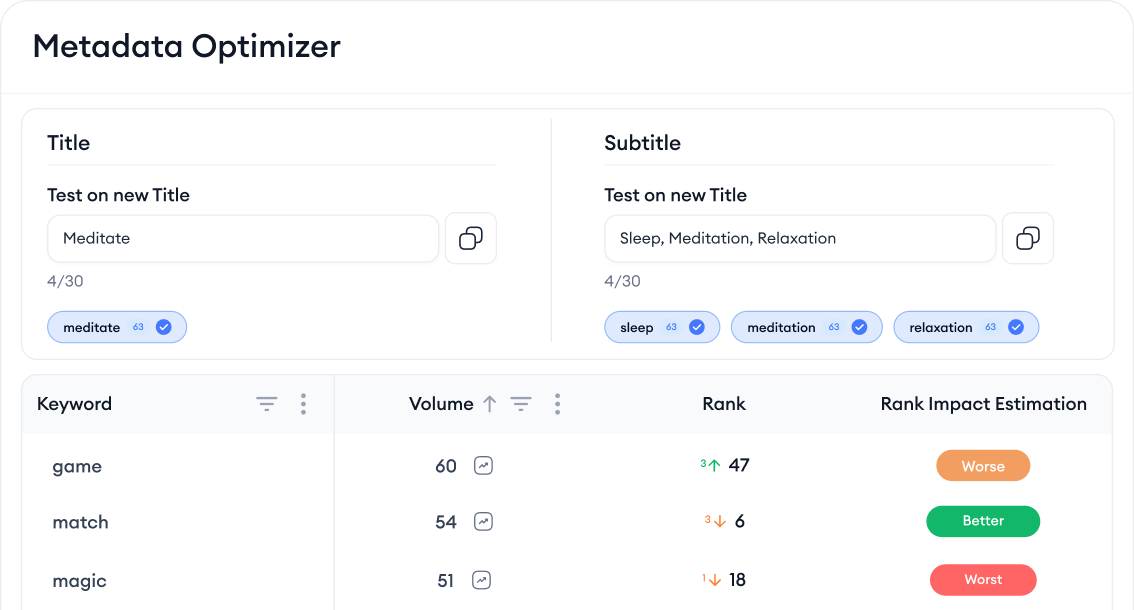
- Metadata Optimizer: Evaluate multiple title and short description versions and see predicted performance before launching a Google Play store listing experiment.
- Keyword Inspector & Keyword Trends: Identify rising keywords that you may want to emphasize in your messaging tests.
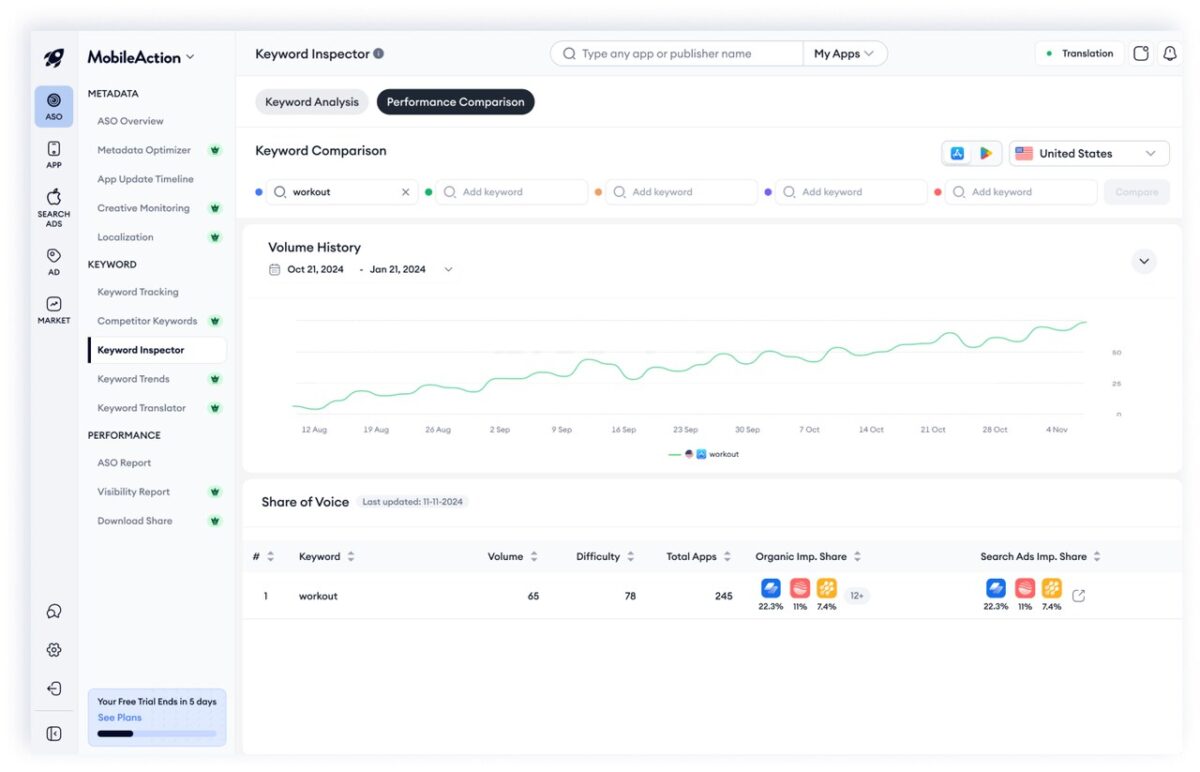
These insights help you design variants that are more likely to win.
Localized Google Play store listing experiment
A localized Google Play store listing experiment allows you to test graphics and text for users who view your store listing in specific languages.
When your app supports multiple languages, adding localized images and translations can:
- Improve readability on smaller screens
- Communicate features in the local language
- Increase discoverability and installs
What to localize
When you add translations, you can localize:
- App title
- Short description
- Full description
- Screenshots
- Feature graphics
- Promo video
Only users who view your listing in those languages will see the localized assets. If you don’t provide translations, users may see automated translations with a note indicating that the translation was generated automatically.
Setting up a localized store listing
After your app is uploaded to Play Console:
- Go to Store presence > Main store listing
- Add translations for the languages you want to support
- Provide localized screenshots and graphics if available
- Review all policies to ensure metadata and assets are appropriate for all audiences
Using store listing experiment with Store Analysis and Conversion Reports
After you apply a winning variant from your Google Play store listing experiment, the next step is to check how it performs on real traffic. Play Console provides two reports to help with this:
- Store analysis
- Listing conversion analysis
These reports show where users come from, how many install your app, and how conversion changes over time.
Store analysis
Go to Grow > Store performance > Store analysis. This page gives a high-level view of acquisition trends. You can see:
- Visitors to your store listing
- Installs from all sources
- Changes over time
Two useful charts are:
- All user acquisitions by type
- Acquisitions from store listing visitors only
If installs dropped because visitors dropped, you may need to drive more traffic. If visitors stayed the same but installs went down, the store listing may need improvement.
You can filter by:
- Country
- Device
- Language
- App version
This helps you understand where results changed.
Listing conversion analysis
Go to Grow > Store performance > Listing conversion analysis.
This view focuses only on what happens when users land on the store listing. You can see:
- Visitors
- Acquisitions
- Conversion rate
All three metrics are shown together in a time-series view. This makes it easy to see if:
- The new variant improved conversions
- Only certain countries or devices performed better
- More testing is needed
Check traffic sources
Reports break installs down by:
- Google Play search
- Google Play explore
- Ads and referrals
This helps answer questions such as:
- Did search visitors convert better after the new icon?
- Did browse traffic respond to a new feature graphic?
- Do external ads bring high-quality traffic?
Use these patterns to refine future experiments.
Compliance, policies, and safe A/B testing on the Google Play Store
Store listings must follow Google Play policies. A high-quality and compliant listing builds user trust and helps ensure that your app continues to be available on Google Play. When you run store listing experiments, the same policies apply to all variants.
Follow store listing policies
Before you create or update store listings or experiment variants, review the policies on the Google Play Developer Policy Center. Store listings can not contain misleading, inappropriate, or unauthorized content.
Key points:
- Descriptions should accurately describe what your app does.
- Graphic assets (icons, feature graphics, screenshots, videos) should show the real in-app experience.
- Avoid unattributed or anonymous user testimonials.
- Don’t repeat large blocks of keywords or add irrelevant terms.
Every translation of your store listing must also follow policy.
Avoid impersonation
Users should not be misled about your app’s identity. Avoid:
- Titles or graphics that look like other apps
- Claiming endorsement or “official” status if none exists
- Using icons or logos similar to another brand without authorization
Misleading listings damage trust and may result in removal from Google Play.
Respect intellectual property rights
Only use content you own or have permission to use. This includes:
- Images
- Logos
- Videos
- Music
- Text
Licenses are required for copyrighted content. Giving credit is not enough. Without authorization, your store listing may violate intellectual property policy.
Keep listings appropriate for all audiences
All store listing content must be suitable for a general audience, regardless of your app’s content rating. Avoid:
- Explicit or inappropriate imagery
- Violent or dangerous content
- Content that lacks reasonable sensitivity toward tragic events
When you update listed content, verify that images, videos, and text meet this standard.
Accurate metadata
Metadata should help users understand your app. Avoid:
- Misleading or unclear claims
- Excessive lists of keywords
- Unrelated references to other apps or products
Keep descriptions concise and focused on your app’s features and benefits.
Conclusion
Google Play store listing experiments help you improve your store listing in a measurable way. By using A/B testing in Google Play Console, you can compare different titles, icons, screenshots, descriptions, and other assets to see which version leads to more installs. These Google Play store listing experiments make optimization practical, because every result is based on real user behavior.
The goal is simple: use data to improve visibility and downloads, so more users choose your app.
Frequently asked questions
Below are short answers to common questions about Google Play store listing experiments.
How many store listing experiments can I run at once?
You can run multiple experiments at the same time, as long as they target different areas. For example:
- One default experiment for icons or screenshots
- Up to five localized experiments for different languages
Experiments using the same storefront or language cannot overlap.
How long should a Google Play experiment run before I decide?
At minimum, let the experiment run for at least seven days. This captures weekdays and weekends, which often behave differently. Some tests may need more time if traffic is low or if results are unclear.
Do experiments affect existing users or only new visitors?
Experiments affect only new visitors who see your store listing during the test. Existing users are not included. This ensures you measure how well your listing converts new potential installers.
How often should I run new Google Play Store listing experiments?
You can run new experiments whenever you have a clear hypothesis or want to improve conversion. Many teams test continuously. Common triggers include:
- A drop in conversion rate
- New visuals or messaging to try
- Launching in a new market
- Seasonal or promotional updates
The best approach is to test regularly, apply winners, and plan the next experiment.
Further reading
- How to use Google Play Console: A complete beginner’s guide
- Google Play Store ranking factors: Ultimate ASO breakdown
- App Store & Google Play: Key differences in 2025
- App screenshot sizes and guidelines for the Google Play Store in 2025
- Google Play ASO: Organic Growth Strategy Guide for Android Apps

Content Marketing Specialist
Resources that you'll love


Grow your app on the App Store and Google Play Store with our solutions now