







This handbook will serve as your roadmap, packed with emerging trends, valuable insights, and the best ASO tools & resources. It aims to help you stay ahead of the competition and enhance your app marketing strategy for substantial growth in 2025 and beyond.
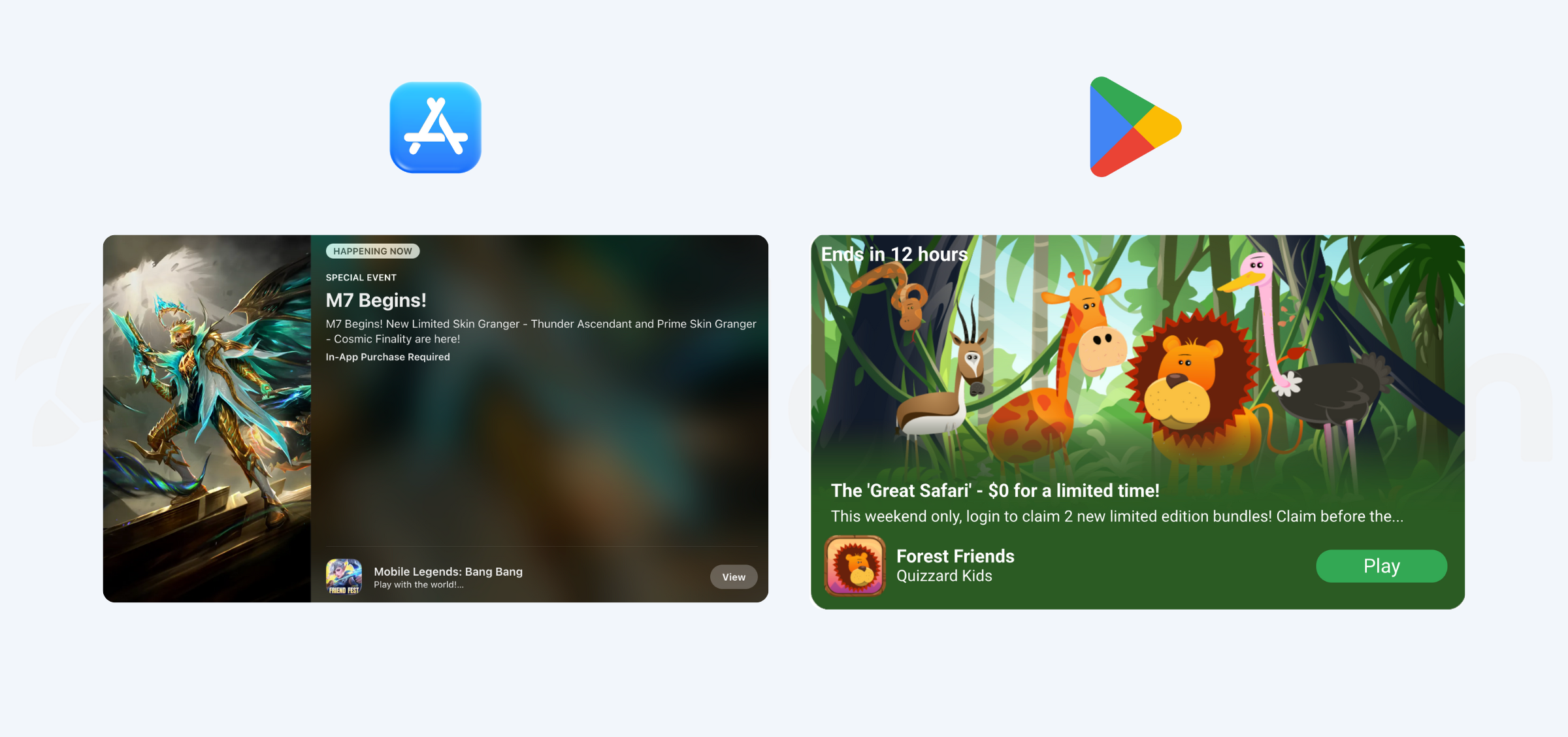
In-App Events and promotional content are how you can highlight specific, time-limited activity on the App Store and Google Play. They show up as temporary promotional cards across the store, such as in search results, browse sections, editorial surfaces, and on your app’s product page, so users can see what you’re promoting before they open your app.
Even though they look similar, Apple and Google built them for different goals.
With App Store In-App Events, you promote a real experience happening inside your app for a limited time. Apple treats these as editorial content, so your event needs to clearly show what users can do and take them straight into that experience after they tap.
With Google Play promotional content, you have more flexibility. You can promote events, major updates, or discounts, and focus on communicating value, especially to users who already have your app installed.
In this guide, you’ll learn how each works, where they appear, how deep linking behaves, and how to choose the right approach so your campaigns work on both the App Store and Google Play.
In-App Events vs promotional content
In-App Events and promotional content are the main ways Apple and Google let you highlight timely activity directly on their app stores. While they may look similar at first glance, they work quite differently in practice.
The differences mainly come down to what you can promote, who you can reach, and what happens after a user taps. The table below breaks these differences down in more detail.
Comparison table
| Topic | App Store In-App Events | Google Play promotional content |
| Main goal | Highlight a specific in-app event | Promote events, offers, or major updates |
| Store approach | Editorial and experience-focused | Merchandising and value-focused |
| Where it appears | Product page, search, editorial tabs | Store listing, search, browse, Home |
| Who you can reach | New, active, and lapsed users | New users, existing users, targeted segments |
| Promotion types | Fixed event badges (Challenge, Live Event, etc.) | Offers, Time-limited events, Major updates |
| Discounts allowed | No (unless part of new content) | Yes (must meet value rules) |
| Time requirement | Mandatory and limited (up to 31 days) | Usually limited; offers may vary |
| Deep link for installed users | Required and reliable | Supported and reliable |
| Deep link after install | Supported via Universal Links | Not supported |
| Creative rules | Must reflect the real in-app experience | No text on visuals; value must be clear |
| Localization | Required for each region | Manual, strongly recommended |
| Key success signals | Event opens, downloads, notifications | Viewers, converters, uplift |
| Best used for | Live moments, seasons, challenges | Sales, updates, targeted promotions |
How to choose
- Use App Store In-App Events when you are promoting something users can actively do for a limited time, and you want a clear path into that experience after install.
- Use Google Play promotional content when you need to promote a discount, a major update, or a targeted campaign, especially for existing users.
- Use both together if you run cross-platform campaigns, but adapt the message to each store’s rules instead of copying the same setup.
What are In-App Events on the App Store
App Store In-App Events let you promote a specific, time-bound activity happening inside your app directly on the App Store. They help you show users what is happening now, without requiring them to open your app first.
This matters because In-App Events can reach people at different stages of the user lifecycle. They are visible on the App Store itself, which makes them different from in-app messaging and push notifications. Those channels only reach people after they have installed your app and opted in. In-App Events can influence discovery and return behavior earlier in the journey.
In-App Events are designed to reach three user states:
- New users who discover your app through search, editorial features, or recommendations
- Active users who see upcoming or live events on your product page
- Lapsed users who previously installed your app and may be prompted to return
Understanding these audiences helps you make better decisions about event timing, badge selection, and deep linking.
Where In-App Events appear on the App Store
In-App Events can show up in a few key places on the Apple App Store, and each placement sets a slightly different user expectation.
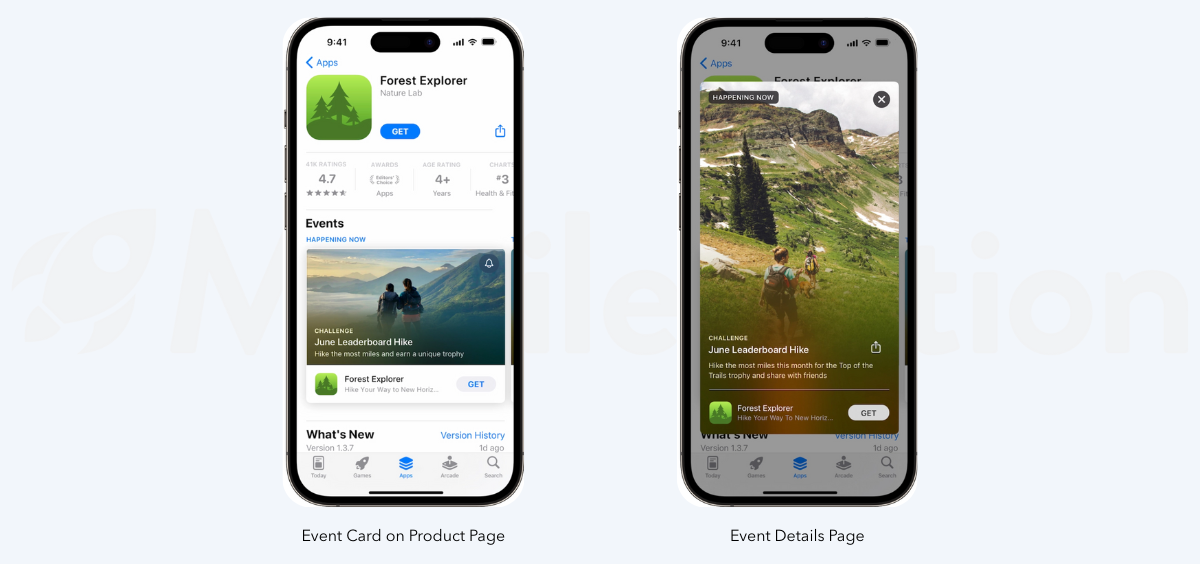
1. Product page
All live events appear on your app’s product page, ordered by start date. Priority (High vs. Normal) can affect visibility. This works best for users who already know your app and want to see what’s new or currently happening.
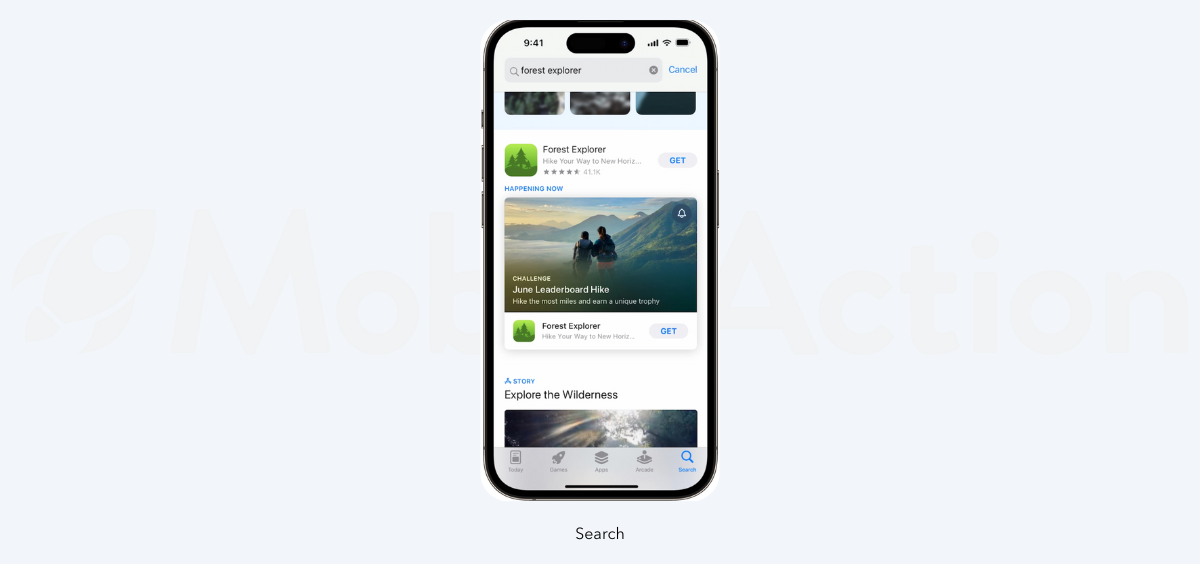
 2. Search results
What users see depends on install status:
- New users usually see screenshots
- Installed or lapsed users may see an event card
Users can also search for the event by name. Search is key for both mobile acquisition and reactivation, especially when you apply practical ASO tactics to your metadata and creatives.
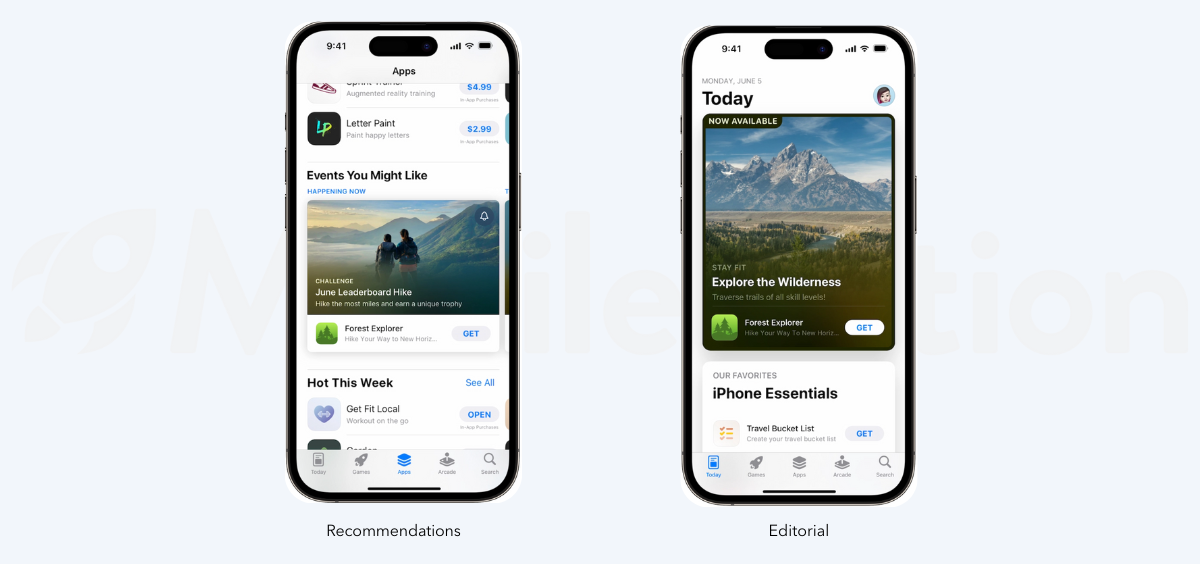
 3. Editorial & recommendations
In-App Events may appear in editorially curated features and personalized recommendations across the Today, Apps, and Games tabs. These placements are selected by Apple and aren’t guaranteed. Visibility depends on clear event metadata, the correct badge, and a working deep link.
App Store In-App Event types (badges)
When you create an In-App Event, you must choose one event type (badge). This badge appears above the event name on the event card. Apple uses it to categorize your event and decide where it fits across App Store surfaces.
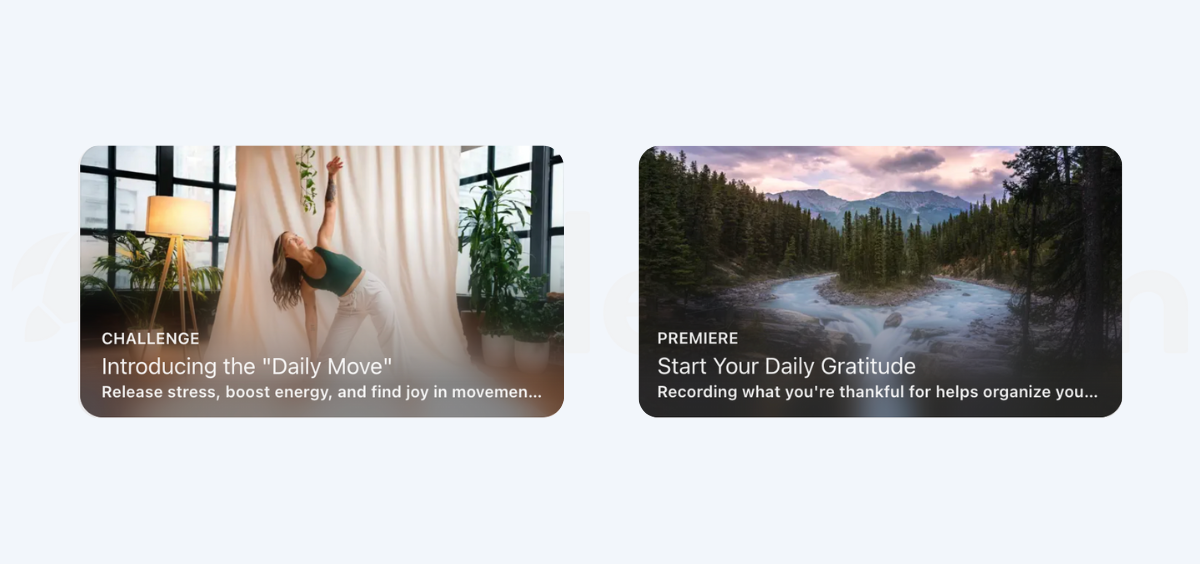
Selecting the correct badge matters for two reasons. First, it affects how Apple interprets your event. Second, it helps users understand the nature of the activity before they tap.
| Event badge | When to use it | Typical use cases |
| Challenge | Users work toward a defined goal within a set time | Fitness challenges, streak-based tasks, progress milestones |
| Competition | Users compete against others for rankings or rewards | Tournaments, leaderboards, PvP events |
| Live Event | The event happens in real time for all users | Live streams, sports matches, real-time classes |
| Major Update | You release a significant new feature or experience | New modes, major functionality, substantial expansions |
| New Season | A new themed content cycle begins | Battle passes, seasonal catalogs, episodic content |
| Premiere | Content is released for the first time | First-time media drops, exclusive debuts |
| Special Event | No other badge accurately fits | Crossovers, collaborations, multi-part campaigns |
How to choose the right badge
Choose the badge based on what the user does:
- If users are progressing toward a goal, choose Challenge
- If users are ranked against others, choose Competition
- If timing matters and everyone participates simultaneously, choose Live Event
- If the event introduces meaningful new functionality, choose Major Update
Use Special Event only when the other categories clearly do not fit. Apple generally expects most events to map to a standard badge.
App Store In-App Events guidelines and requirements
Before you build your event plan, you need to understand Apple’s baseline rules. Most review issues are caused by events that are not truly time-bound, not specific enough, or framed as promotions instead of in-app experiences.
Eligibility and platform requirements
In-App Events are available only on:
- iOS 15 or later
- iPadOS 15 or later
You can submit events without submitting a new app version if your app is already approved. If your app is not yet approved, you must submit the event together with a new version.
Only users with the Marketing, App Manager, Admin, or Account Holder roles can submit events.
What you can promote, and what gets rejected
Apple evaluates In-App Events as editorial content. The event must represent a real experience inside the app.
You can promote time-limited challenges and competitions, live or real-time experiences, new content drops or seasons, major feature releases, and limited-time collaborations.
Apple often rejects events that:
- Promote ongoing or repetitive activities (for example, daily quests)
- Focus only on a discount without new content
- Promote the app in general rather than a specific event
- Reuse the same event concept too frequently with minor changes
If the event would still make sense months later without changes, it likely does not qualify.
In-App Event limits, timing, and availability
Apple enforces specific limits that shape how you plan your calendar:
- You can have up to 15 approved events per app in App Store Connect
- A maximum of 10 events can be live at the same time
- Each event can run for up to 31 days
- Events can be published up to 14 days before they start, which allows users to opt in for notifications
- Events are shown only in the regions you select and according to the local time settings you configure
These constraints push you toward a planned approach. If you submit events too late or reuse concepts too often, you reduce both approval likelihood and performance potential.
App Store In-App Events metadata
Metadata is how Apple and users understand your event. It influences classification, discovery, and whether the event meets editorial standards. For users, metadata answers three questions quickly: what is happening, why it matters now, and what they can do.
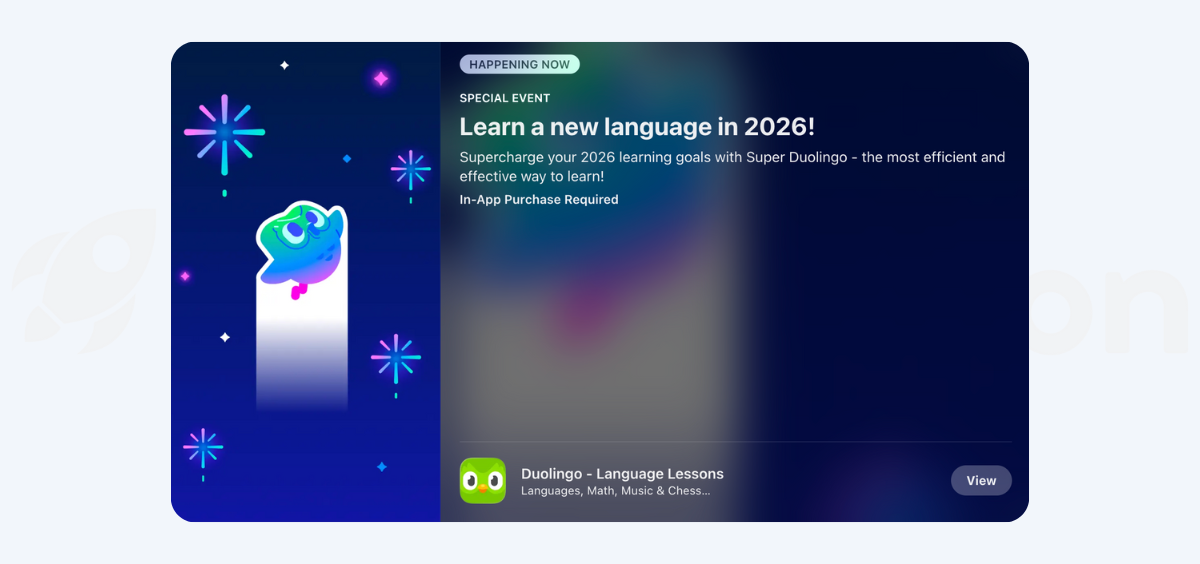
Each In-App Event requires three text fields. All three should describe the event itself, not the app as a whole.
Event name
The event name is the most prominent text element and is searchable on the App Store.
- Maximum length: 30 characters
- Must be unique and descriptive
- No calls to action (for example, “Play now” or “Join today”)
- Avoid generic or recurring labels (for example, “Weekly event”)
Use concrete language that describes the in-app activity clearly. If the name reads like a marketing message, it is more likely to be rejected or shown less often.
Short description
The short description appears under the event name on the event card. It should add clarity without repeating the name.
- Maximum length: 50 characters
- Plain, factual language
- No calls to action
Focus on what the user will do or gain. This is usually the deciding factor for whether someone taps in search and browse contexts.
Long description
The long description appears on the event details page and explains participation.
- Maximum length: 120 characters
- Plain text only
- No emojis, hashtags, or promotional language
Briefly explain what the user does, what they receive or unlock, and any conditions that matter (for example, limited time, eligibility, or required purchase).
Localization requirements
You must localize event metadata for every region where the event is available. Apple does not automatically translate your text. If your metadata is not localized, your event may be rejected or excluded from editorial consideration.
Plan localization as part of the submission process, not as a post-launch improvement.
Creative assets for App Store In-App Events
Creative assets define how your event appears across the App Store. Apple reviews these assets as editorial content, so they must accurately reflect the in-app experience rather than promote the app at a brand level.
Each event requires assets for two placements: the event card and the event details page. Images and videos must follow Apple’s technical specifications and content rules.
Image and video specifications
| Asset type | Supported formats | Aspect ratio | Minimum resolution | Maximum resolution |
| Event card image | JPG, JPEG, PNG | 16:9 | 1920 × 1080 px | 3840 × 2160 px |
| Event card video | MOV, M4V, MP4 | 16:9 | 1920 × 1080 px (30 or 60 fps) | 3840 × 2160 px (30 or 60 fps) |
| Event detail page image | JPG, JPEG, PNG | 9:16 | 1080 × 1920 px | 2160 × 3840 px |
| Event detail page video | MOV, M4V, MP4 | 9:16 | 1080 × 1920 px (30 or 60 fps) | 2160 × 3840 px (30 or 60 fps) |
Deep linking for App Store In-App Events
Deep linking is required for every In-App Event. It determines what happens when a user taps your event and moves from the App Store into your app.
Apple expects the deep link to open event-specific content, not a generic home screen. This matters because In-App Events have limited visibility windows. If you lose users after the tap, the event underperforms even if impressions are strong.
How deep links work in practice
You should design for three core states:
- App installed: the link opens the app and lands directly on the event screen
- App not installed: the user installs the app first, then is routed to the event after opening
- Event not started yet: the link opens a clear “coming soon” or event landing screen
In all cases, users should immediately understand what the event is and how to access it.
Universal Links vs alternatives
Universal Links are the recommended option. They use standard HTTPS URLs and can handle both installed and non-installed states more reliably. Custom URL schemes only work when the app is installed and offer weaker fallback behavior.
Whatever method you use, your link must resolve to event-specific content or a dedicated event hub.
How to create App Store In-App Events (step by step)
Before you create an In-App Event, make sure you have three things in place.
First, confirm you have the right access in App Store Connect. You need to be an Account Holder, Admin, App Manager, or Marketing user to create and submit events.
Next, prepare the creative assets for both placements Apple requires: an Event Card asset in landscape (16:9) and an Event Details Page asset in portrait (9:16). If you plan to use video, you’ll also want to confirm it looks clean when it loops.
Finally, make sure you have a working deep link, either a Universal Link or a custom URL, that takes users directly to the event content inside your app.
Step 1: Create a new In-App Event in App Store Connect
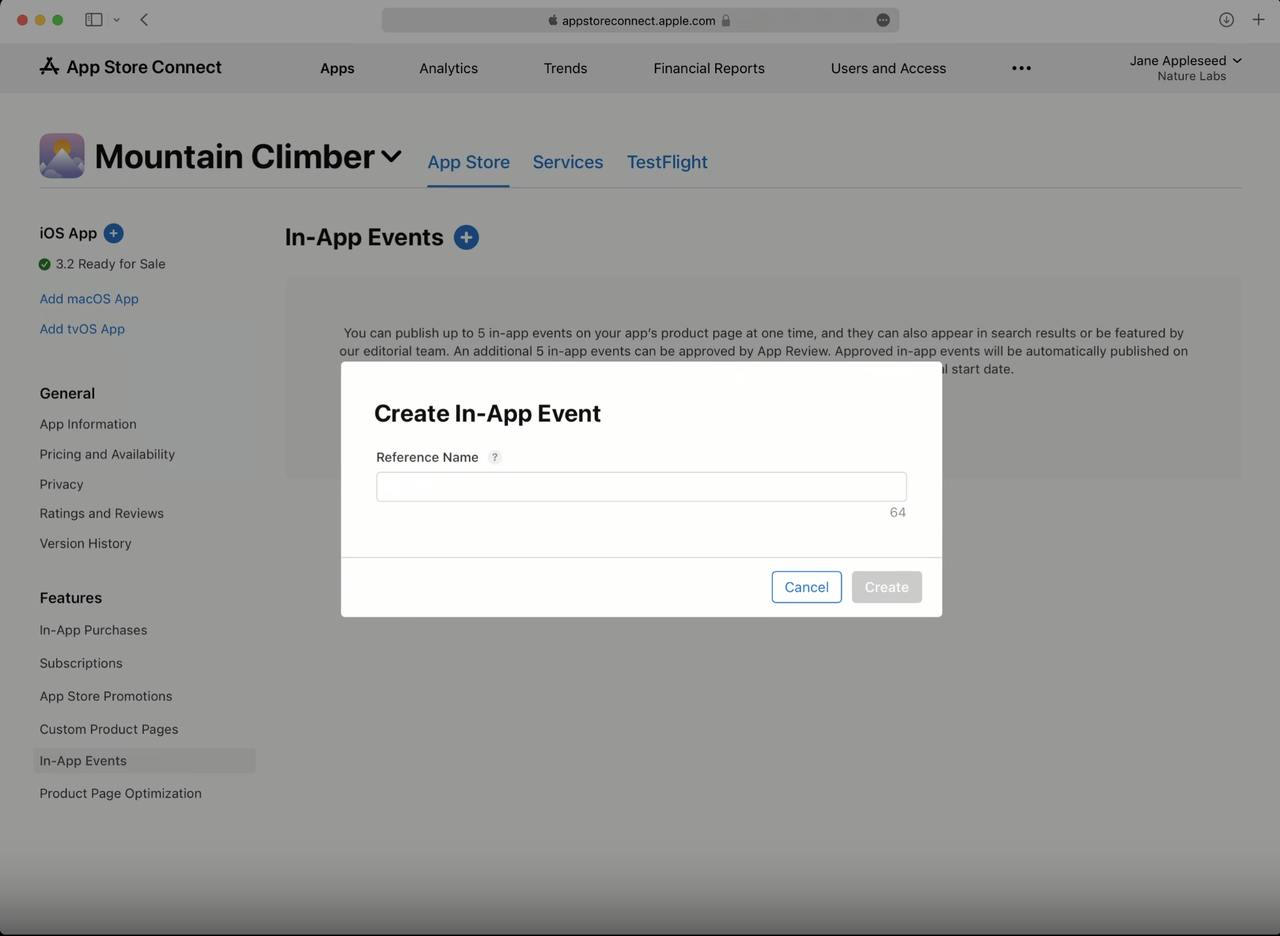
Start in App Store Connect, open your app, then select In-App Events from the left navigation.
Create a new event using Create In-App Event (or the + button). You’ll be asked for a Reference Name. This name is only for internal organization in App Store Connect, so choose something your team will recognize. It must be unique and under 64 characters.
When you’re done, click Create to generate the event.
Step 2: Add the event metadata users will see
Open your newly created event from the list and enter the public-facing details. This is the copy that appears on the App Store surfaces, so keep it specific and easy to understand at a glance.
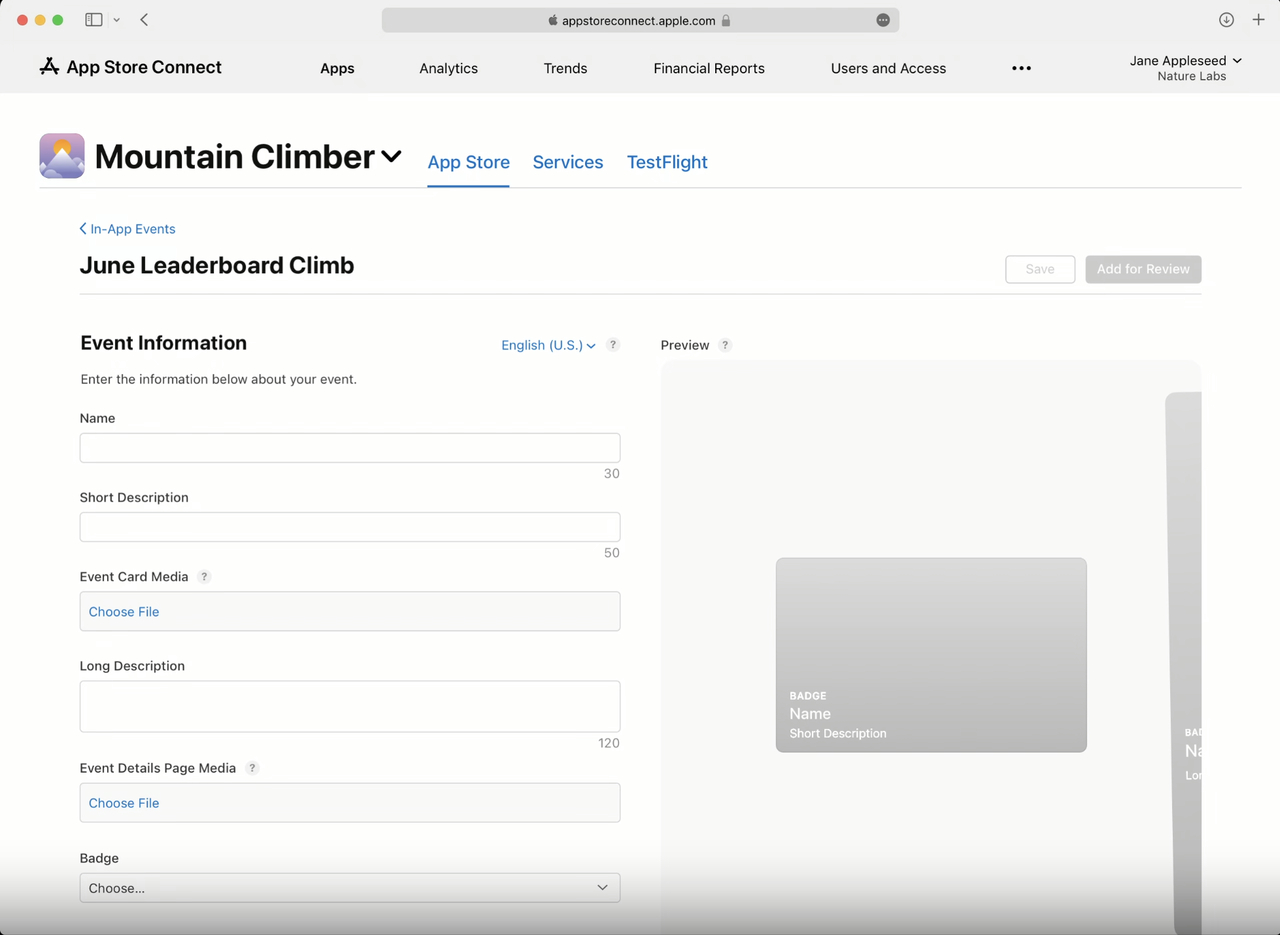
You’ll fill in:
- Event Name: the title shown to users. Keep it unique, written in Title Case, and within 30 characters. Avoid call-to-action wording.
- Short Description: the line that appears on the event card, within 50 characters.
- Long Description: the text used on the event details page, within 120 characters.
- Event Badge: choose the category that best matches what users will experience (for example: Challenge, Competition, Live Event, Major Update, New Season, Premiere, or Special Event).
These limits are tight by design. You’ll get better results if you focus on what’s new or time-bound, and what the user can actually do during the event.
Step 3: Upload the required media assets
In-App Events use two different assets, because the Event Card and the Details Page have different layouts.
Upload:
- Event Card asset: 16:9 landscape, minimum 1920 × 1080 px
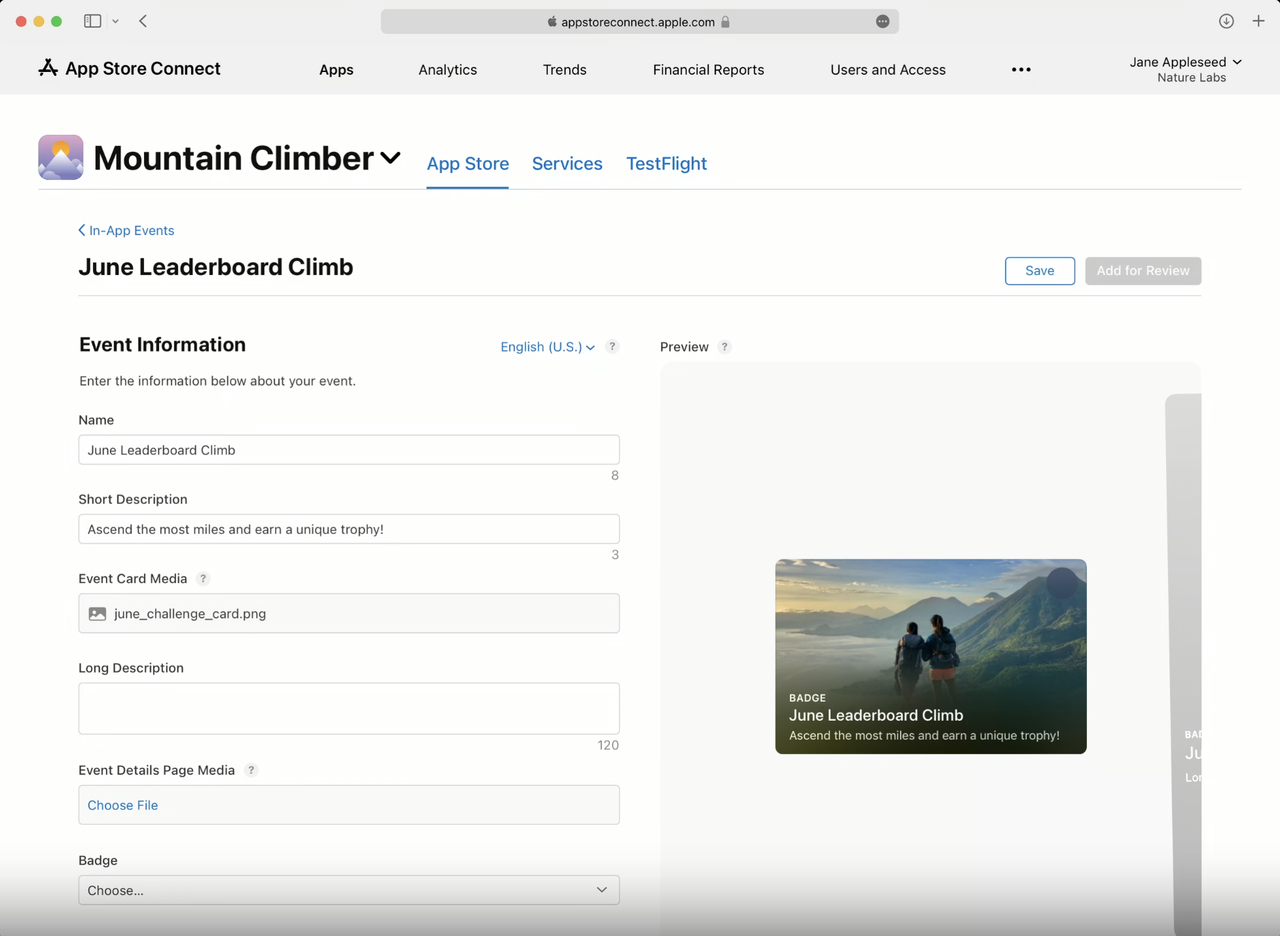
- Details Page asset: 9:16 portrait, minimum 1080 × 1920 px
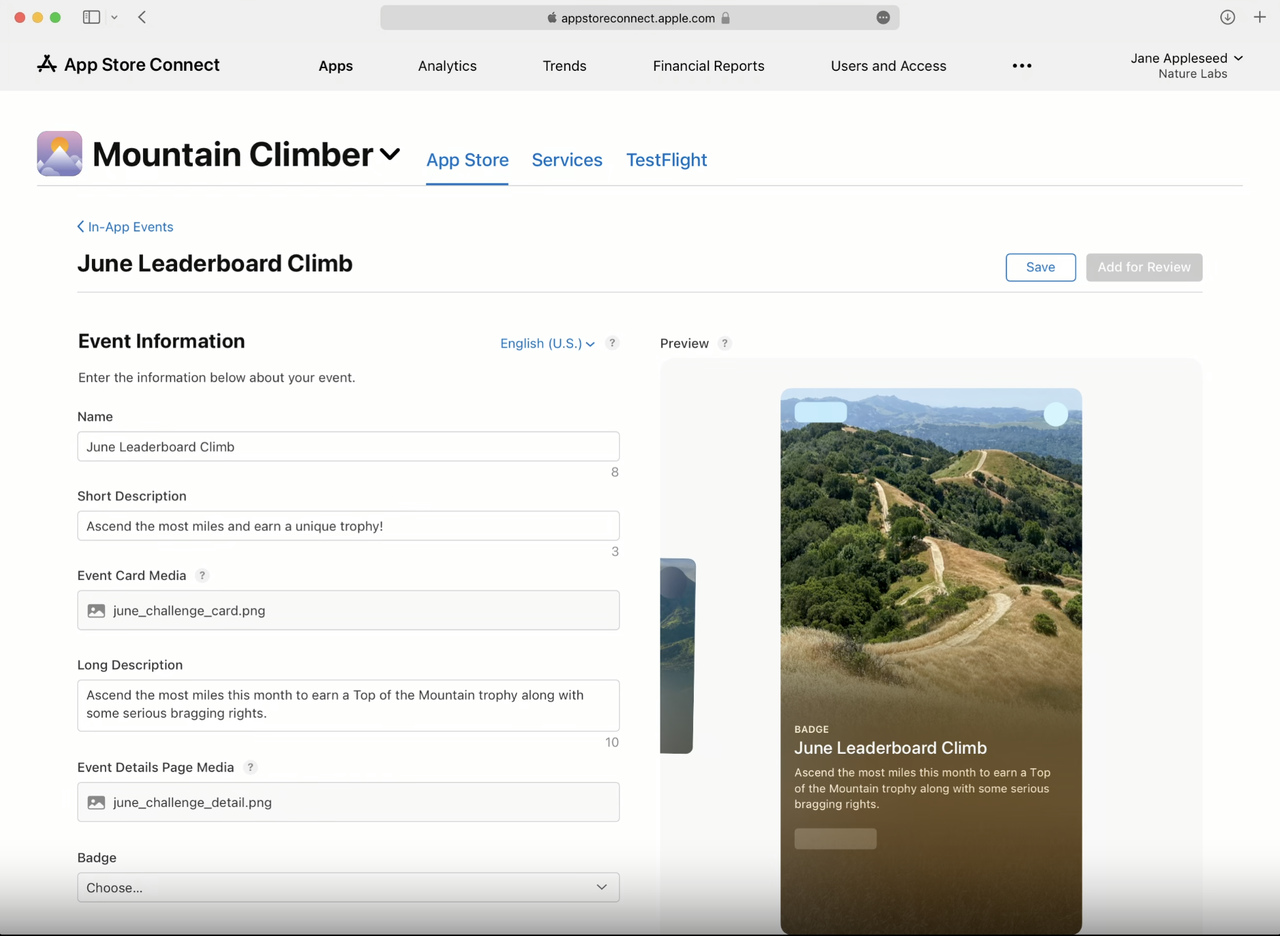
If you use video, remember it will loop automatically, so it should feel seamless when it restarts.
Also keep in mind that the App Store overlays the event name and app icon on top of the creative. For that reason, it’s safer to avoid packing the media with text or logos that could clash with Apple’s overlays.
Step 4: Set availability and scheduling
In the Country or Region Availability section, decide where the event should appear. By default, it’s available in all regions where your app is live, but you can limit regions if the event is not globally relevant.
Then set your timing:
- Choose the event’s Start Date and End Date based on when the event actually runs in your product.
- Apple enforces a duration window: the event must be at least 15 minutes long and can run for up to 31 days.
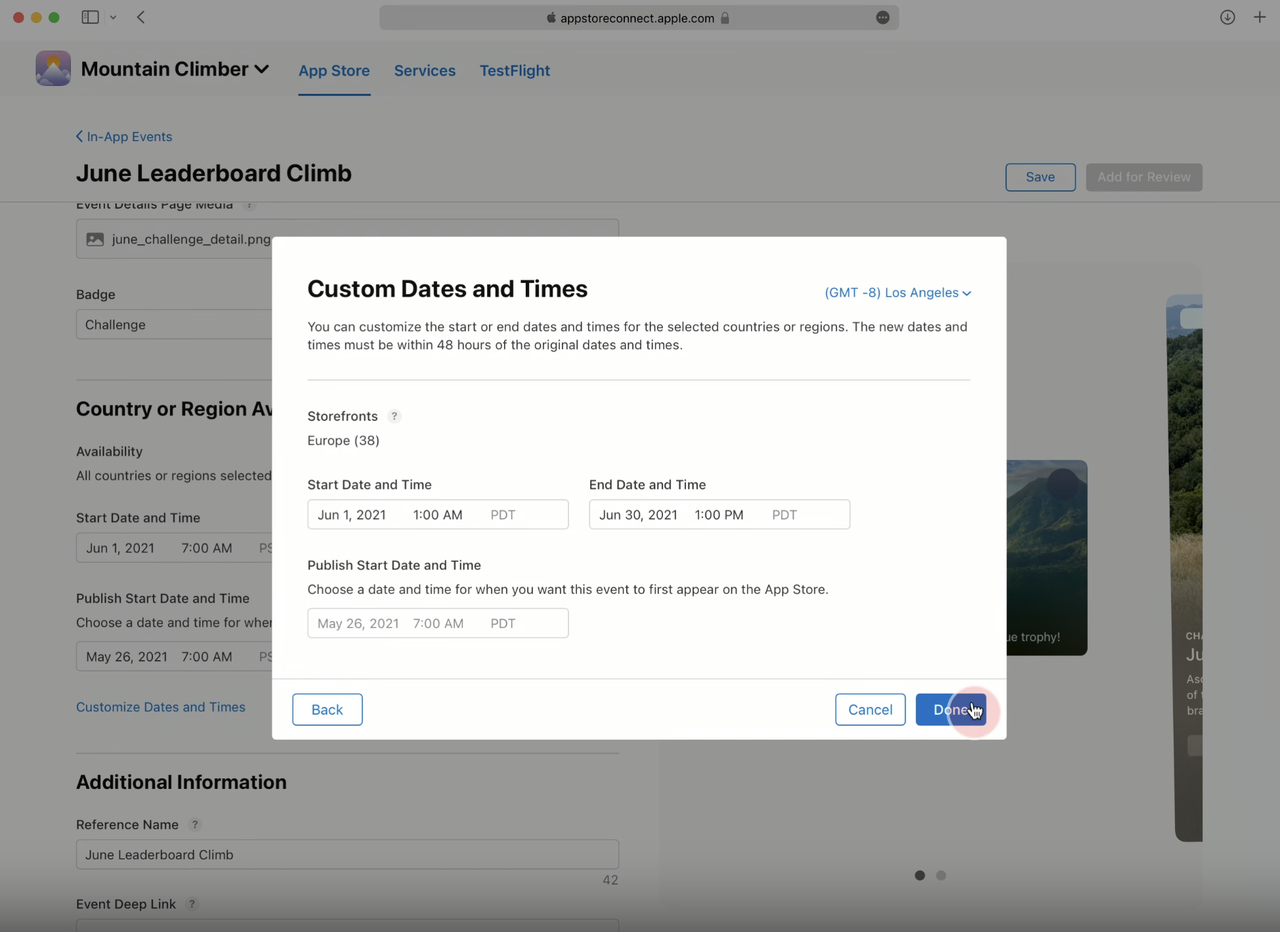
You’ll also select a Publish Date, which controls when the event card becomes visible on the App Store ahead of the event. This is how you can build visibility before the start. You can publish up to 14 days before the event begins.
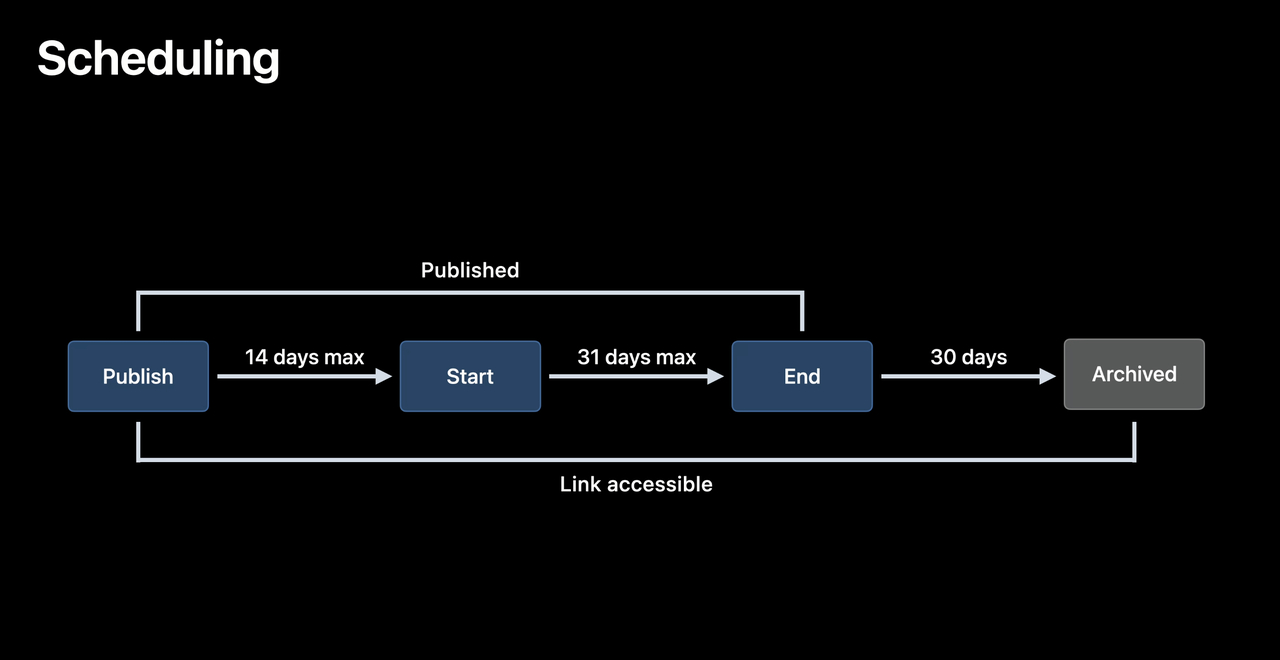
If you want the event to begin at a consistent local time across regions (for example, 9:00 AM in each country), use Customize Dates and Times to control how start and end times map to different time zones.
Step 5: Add the deep link and key event settings
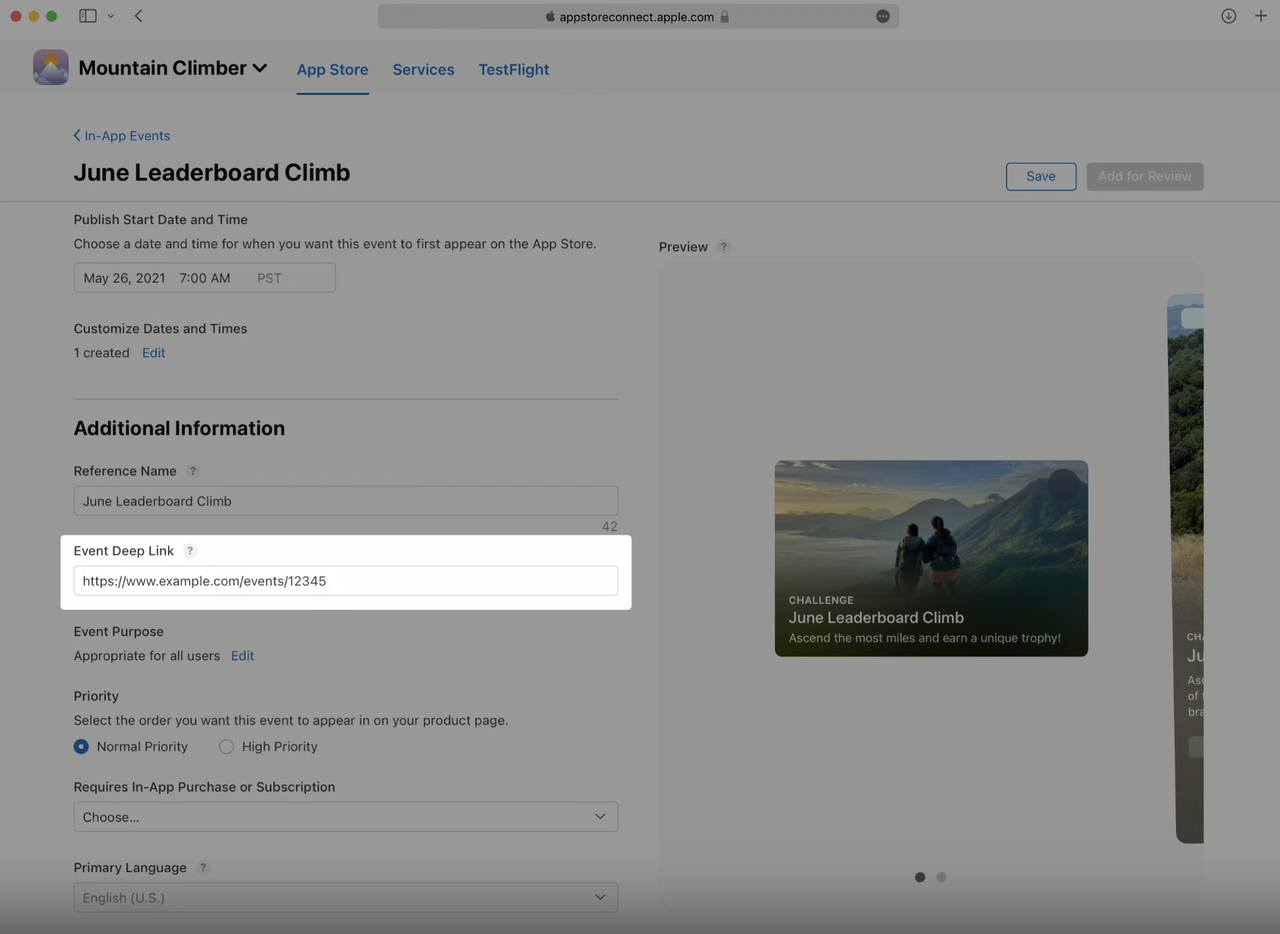
Next, enter the Event Deep Link. This should open the exact event context inside your app, not just the home screen. A practical way to validate this is to paste the link into the Notes app on a device and tap it, to confirm it resolves correctly.
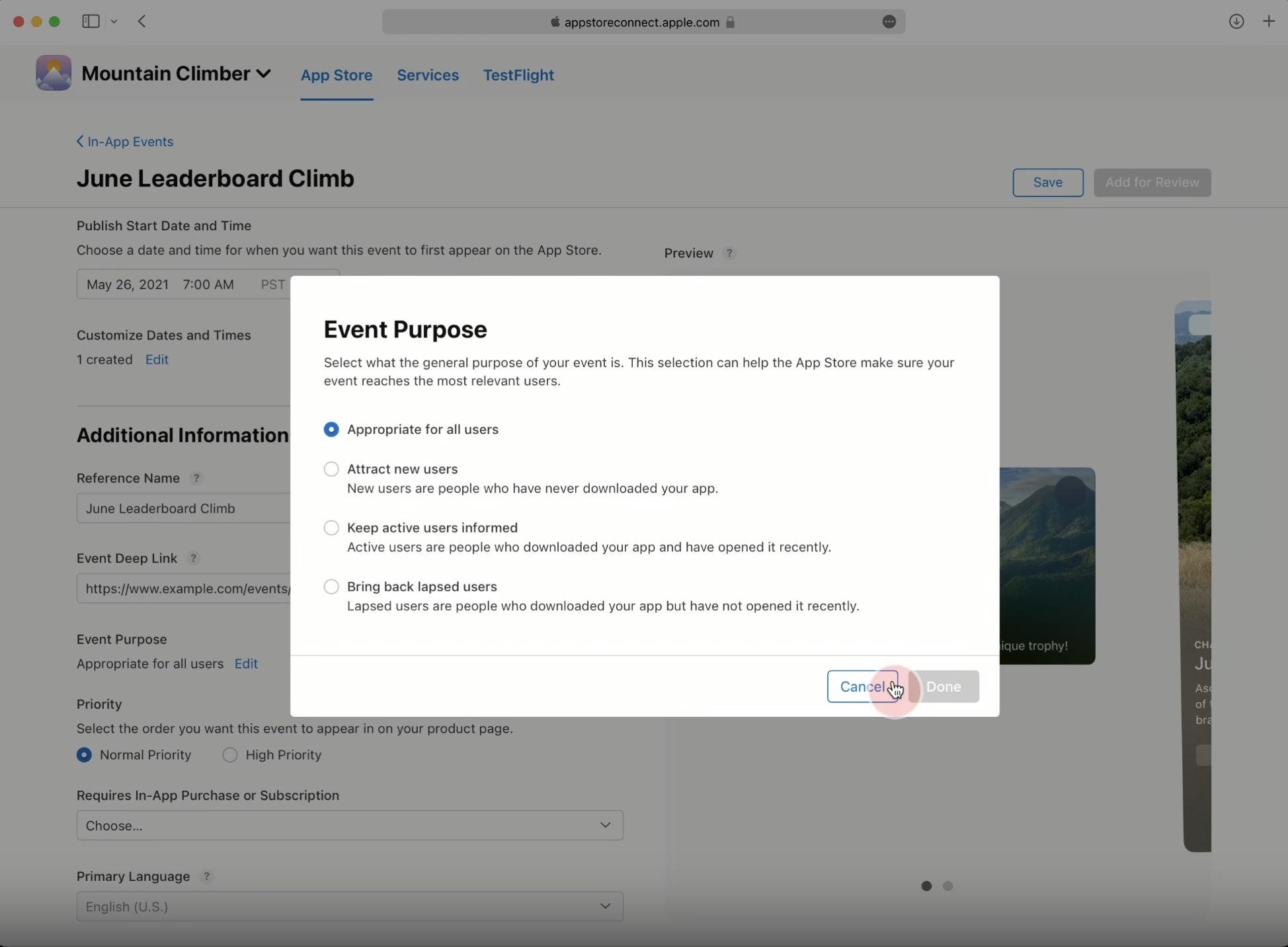
You’ll also configure a few settings that affect how Apple positions the event:
- Event Purpose: select your primary goal, attract new users, inform active users, or bring back lapsed users. This helps Apple understand who the event is relevant to.
- Priority: choose High Priority if you want this event to appear ahead of other events on your product page; otherwise keep it Normal.
- Cost: indicate whether participation requires an in-app purchase or subscription.
These fields are straightforward, but they matter because they influence how the event is surfaced and ordered.
Step 6: Submit the event for review
When everything is complete, submit the event from the event page:
Go to In-App Events, open the event, then click Add for Review.
You can submit in two ways. If you’re releasing an app update, you can submit the event with a new app version so it’s reviewed alongside the binary. If your app is already live and you don’t need an update, you can submit the event without an app update by selecting an existing platform version for review.
After you click Submit for Review, the event status will move to Waiting for Review, then In Review.
Finally, keep the platform limits in mind for planning and sequencing. You can have up to 15 approved In-App Events in App Store Connect, and up to 10 published (live) events on the App Store at any time.
Measuring App Store In-App Events performance
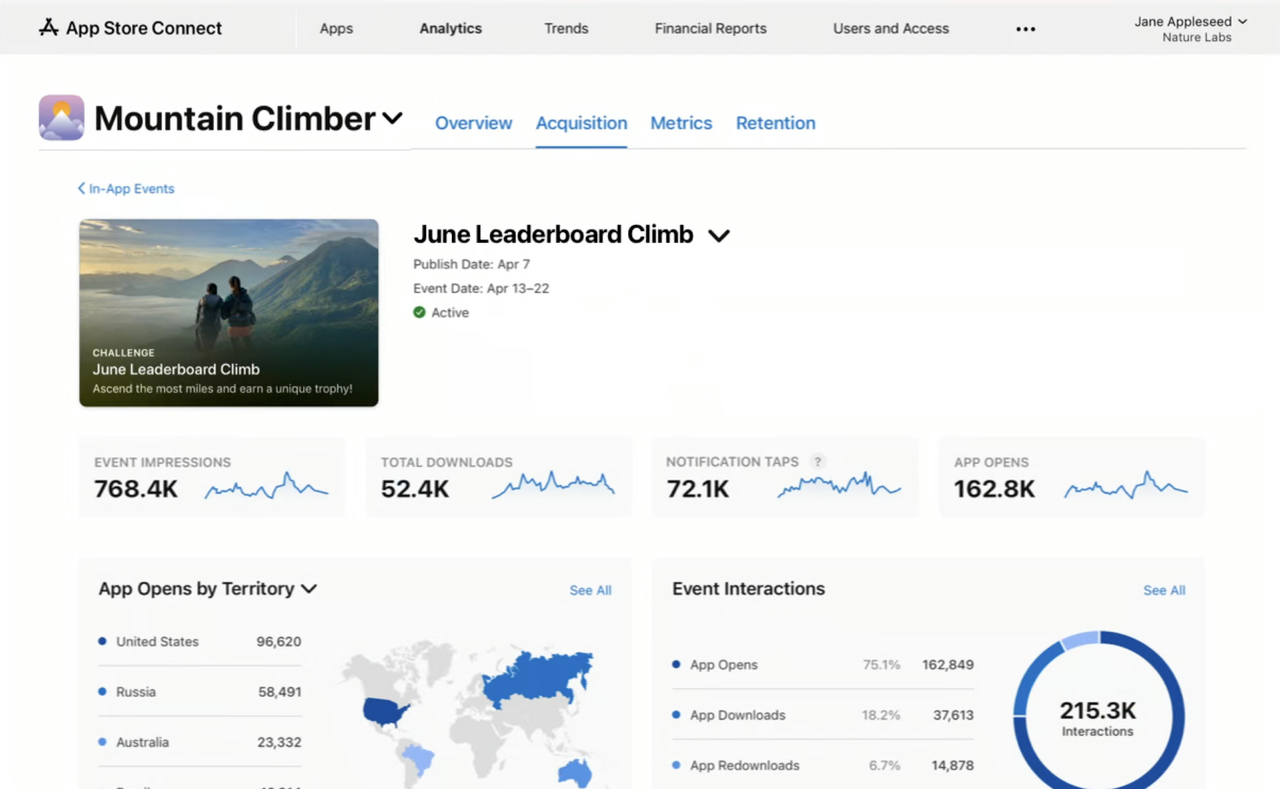
You measure In-App Events in App Store Connect → App Analytics, using the dedicated In-App Events dashboard. This dashboard is built specifically for event discovery surfaces, focusing on how users interact with your event card and event details page across the App Store.
This matters because In-App Events are not evaluated like product page traffic. Events can surface in search, editorial placements, and on your product page, and the dashboard helps you understand which surfaces are driving meaningful actions.
Metrics you can track in the In-App Events dashboard
The dashboard captures a straightforward funnel: how often people see the event, how often they explore it, and what they do next. You can typically filter by territory and by where the event was discovered to understand which surfaces are contributing.
Here’s what each metric tells you:
- Impressions shows how many times your event card was shown on the App Store. This is your top-of-funnel visibility.
- Event Details Page Views shows how many users tapped the card to open the expanded details page. This is a strong indicator that the card did enough to earn attention.
- Downloads captures installs that happened directly from the event card or details page. This is the clearest acquisition outcome tied to the event placement.
- App Opens shows how many users launched your app using the event entry point (for example, via the “Open” button on the card or details page). This is often the most useful signal for engagement-focused events.
- Notifications counts users who opted in to be notified when the event starts (by tapping the bell icon). This indicates intent, even if the user doesn’t act immediately.
How to read the results
Your event purpose should guide what “success” means.
- Attract new users: Focus on Downloads. If many people see the event but few install, revisit what drives store listing conversion rate before changing the event idea.
- Keep active users informed: Focus on App Opens. The event should help existing users return to the app during the event.
- Bring back lapsed users: Focus on Redownloads (if shown) and App Opens. If users don’t return, the event may not clearly explain what’s new or different.
After the event ends
Review which App Store surfaces drove results and where users dropped off. If engagement is low, check technical issues such as broken deep links before changing the event idea. Use what you learn to improve the next event.
How MobileAction helps you track App Store In-App Events
While App Store Connect shows performance for your own events, MobileAction helps you understand how In-App Events are used across the market.
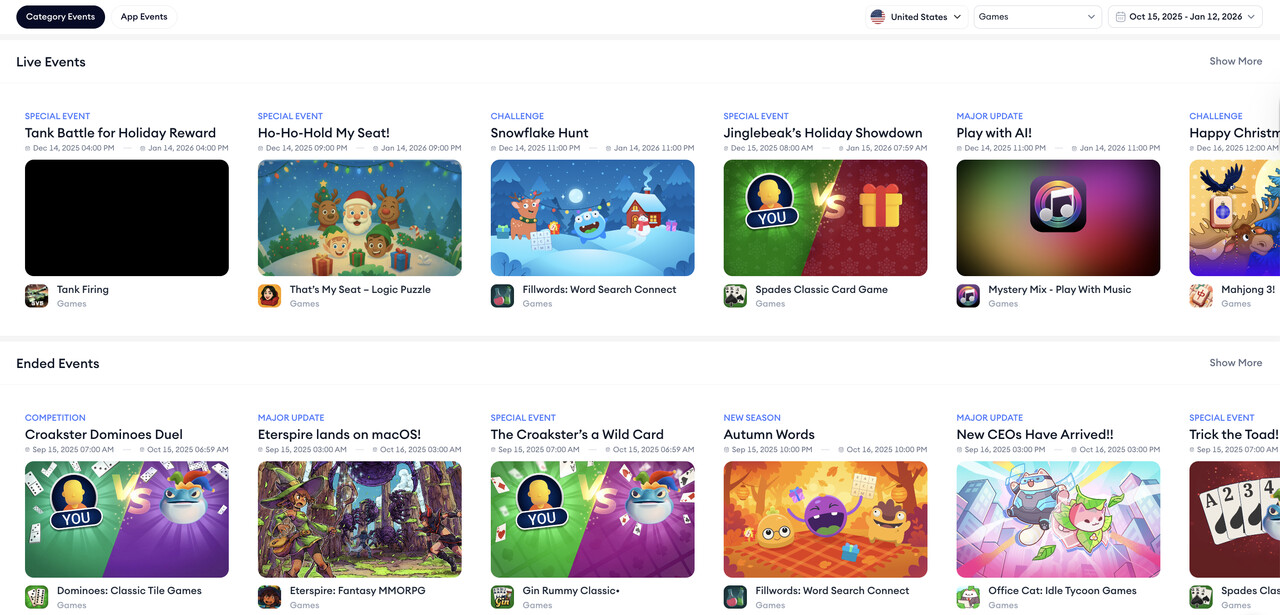
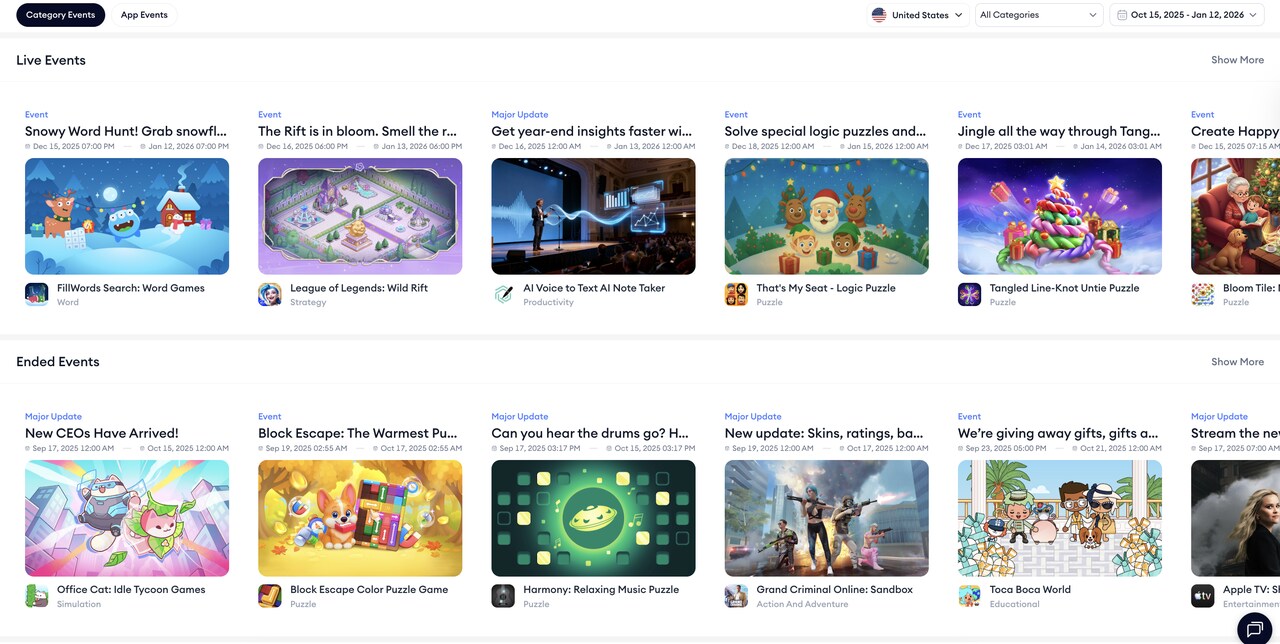
With MobileAction, you can explore live and ended In-App Events by category or app, track how competitors structure their events, and spot seasonal patterns around launches, updates, and live moments. This makes it easier to plan your own event calendar based on real store activity, not guesswork.
What promotional content is on Google Play?
Google Play promotional content is a store-level merchandising system that lets you highlight timely activity, offers, or updates directly on Google Play. It is designed to surface what is new or relevant right now to users before they install, update, or reopen your app.
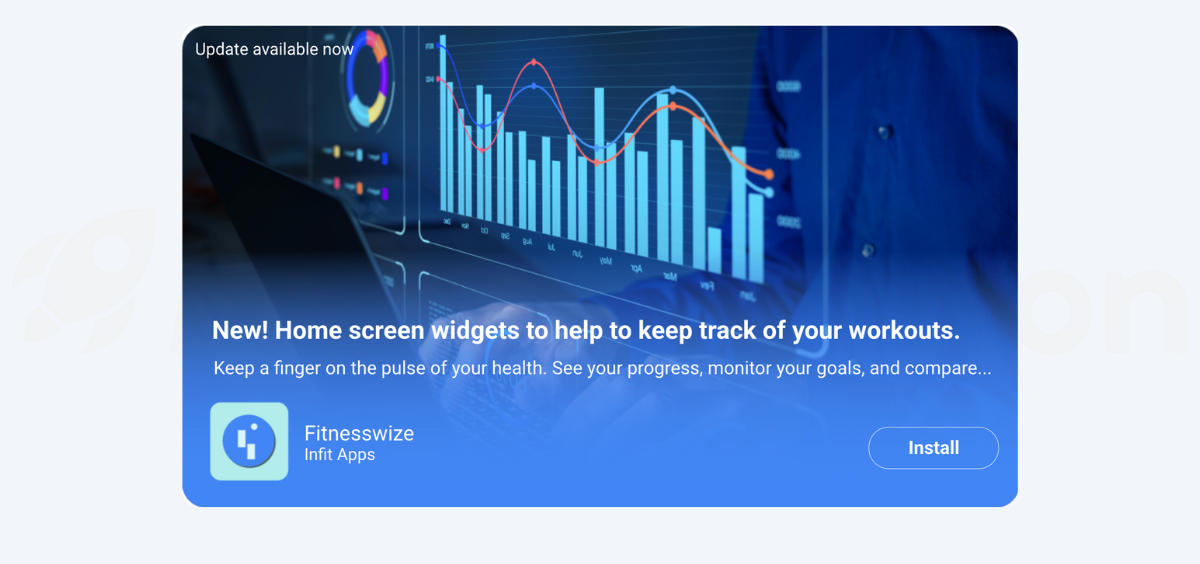
Promotional content lives outside the app, on Google Play surfaces.
You use promotional content to:
- Increase your download volume by pairing visibility with a clear value moment.
- Drive installs, reopens, or updates tied to a specific moment
- Signal quality and ongoing investment to Google Play’s featuring systems
Promotional content appears across Google Play and is managed through Play Console.
Where promotional content appears
Promotional content can appear across several Google Play surfaces. Visibility depends on content quality, classification, and priority.
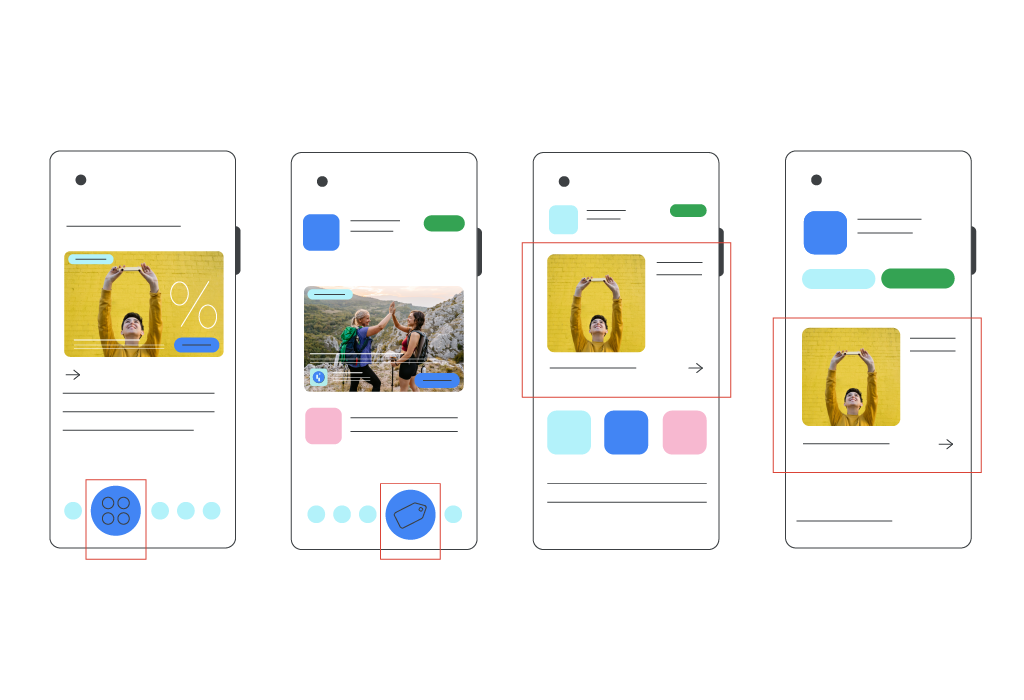
1. Store listing page (all users)
Promotional content always appears on your app’s store listing page.
This is the default placement and does not require featuring eligibility.
2. Search results (installed and uninstalled users)
Your content may appear in Search when your app is shown as a large card.
This placement can reach both users who have your app installed and those who have never installed it.
3. Apps Home (active and churned users)
Promotional content can surface on the Apps Home feed for users who have installed your app before, including active and churned users.
4. Offers Home (relevant users)
Selected content may appear on the Offers Home surface.
This placement targets users who are most likely to find the promotion relevant.
Google Play promotional content types
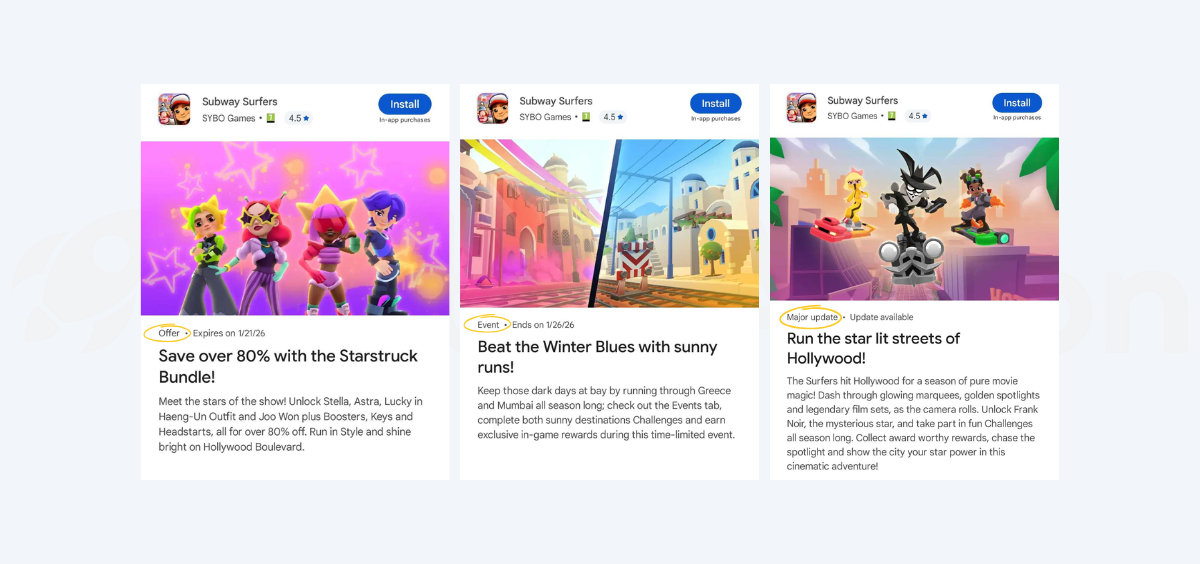
When creating promotional content, you must choose one content type. This choice determines where and how your content can appear.
Offers
Offers are used when you provide clear monetary or incremental value.
They are appropriate only when the value is:
- Time-limited
- Specific
- Meaningful
Common offer formats include discounts, value-add bonuses, free rewards, and trials.
Offers must provide at least 10% value and cannot represent everyday pricing. If the value is unclear or ongoing, the content may be rejected or limited to the store listing.
Time-limited events
Time-limited events highlight in-app moments, not pricing.
They are used for:
- Competitions or challenges where users compete for rewards, rankings, or goals
- Real-time experiences such as live streams, sports events, or concerts
- Special events, including collaborations or seasonal moments
Use this type when participation or experience is the main value, not a discount.
Major updates
Major updates are used for substantial changes to the app.
This includes:
- New core features or major capability upgrades
- Significant content expansions or newly available content (such as shows, media, or performances)
- Pre-registration updates, including milestone progress, instant app demos, or global release announcements
Minor updates, bug fixes, or routine improvements do not qualify and should not be submitted as promotional content.
Google Play promotional content guidelines
Once you understand how promotional content works and where it can appear, the next step is applying Google Play’s submission rules correctly. These guidelines determine whether your content is eligible for broader distribution or limited to your store listing.
Classification rules (why type selection matters)
Selecting the correct content type is a functional requirement. Google Play uses the selected classification to match content with users’ purposes and show it in relevant contexts. If the classification does not reflect the true nature of the promotion, visibility may be restricted or submission may be rejected during review.
You must select one of three types, Offers, Time-limited events, or Major updates, and the choice must align with the primary value you are presenting.
- If the main value is a discount, bundle, free item, or trial, the content must be classified as an Offer, even if it is framed as a seasonal or themed moment.
- If the value comes from participation or experience rather than pricing, it should be submitted as a Time-limited event.
- If you are announcing a substantial, lasting addition to the app, such as a new feature set or major content drop, it should be submitted as a Major update.
Incorrect classification is one of the most common reasons promotional content underperforms or fails review.
Text requirements (tagline and description)
Promotional content text must be clear, specific, and informative. Google Play does not localize text automatically, so you are responsible for providing accurate, high-quality copy for every target locale.
Tagline
The tagline functions as the headline and appears across all eligible surfaces.
- Maximum length: 80 characters
- It must clearly state what the promotion is, not just that something is happening
- Generic labels such as “Update” or “Weekly event” are not acceptable
- Calls to action (for example, “Play now” or “Download”) are not allowed
- Line breaks are not permitted
For Offers, the tagline must communicate value directly. This means stating the discount, benefit, or recognized sale context, and including eligibility conditions where relevant.
Description
The description appears when users open the promotional card.
- Maximum length: 500 characters
- It should explain why the promotion matters and how users can take part
- Do not repeat the tagline text, as part of the description is often shown alongside it
- Use short paragraphs rather than lists; bullet points are not allowed
The description can include light contextual or thematic language, but the practical benefit and participation logic must always be clear.
Visual requirements (image, video, animation)
Visual assets play a major role in eligibility for high-traffic placements. Low-quality or non-compliant visuals may limit your content to the store listing only.
Primary image – Lottie (required)
- Size: 1920 × 1080 (16:9)
- Format: JPG or 24-bit PNG
- The image should not contain promotional text, slogans, or the app name
- Logos are generally not allowed unless they are part of a third-party collaboration or appear naturally within the product shown
- Keep important visual elements centered to avoid cropping
- Avoid pure white or dark gray backgrounds that blend into the Play Store UI
Use composed visuals that represent the specific moment being promoted, not generic screenshots.
Video (recommended)
- Must be hosted on YouTube and set to Public or Unlisted
- Monetization must be disabled
- Landscape orientation is required
- Only the opening portion auto-plays, so clarity in the first seconds matters
For certain placements, such as the Games tab, videos may need to meet recency requirements.
Animation (optional)
- Lottie format, 16:9 aspect ratio
- Maximum size: 200 KB
- Maximum duration: 6 seconds, looping seamlessly
- No text, flashing effects, or UI-like elements
Animations should enhance visual clarity, not simulate interaction.
Restricted and disallowed content
Google Play applies strict quality and policy filters to promotional content.
Submissions may be rejected or limited if they include:
- Evergreen or always-on programs that are not tied to a specific new moment
- Generic descriptions of the app rather than a distinct promotion
- Attempts to bundle multiple routine elements into a single card
Offers must meet a minimum 10% value threshold, represent a genuine temporary benefit, and clearly specify what is included. Everyday pricing framed as a discount is not permitted.
Certain topics are prohibited or heavily restricted, including specific financial products, sensitive political or geopolitical content, and explicit or shocking material.
For dating apps, promotional content must remain inclusive. Messaging cannot target users by age, religion, or sexual orientation, even if those filters exist inside the app. Focus instead on broadly applicable benefits such as connection, safety, or community.
Deep linking for Google Play promotional content
Deep links control where users land when they interact with promotional content. They are essential for converting visibility into meaningful action.
Supported deep link types
Google Play supports two deep link approaches:
- Android App Links (recommended), which use standard HTTPS URLs
- Custom URI schemes, which link directly to in-app destinations
Third-party deep linking solutions that rely on redirects are not supported, because they route users through intermediate domains.
Install vs. post-install behavior
Deep link behavior changes based on whether the app is already installed.
If the user has the app installed, tapping “Open” from the promotional card sends them directly to the configured deep link destination.
If the user does not have the app installed, deep links do not persist through installation. The user installs the app, and on first launch they land on the default entry point, not the promotional destination.
This limitation means promotional content deep links are most reliable for re-engagement, not first-time installs.
Deep link limitations
There are several constraints you need to plan around:
- You can configure only one deep link per promotional item
- The deep link triggers only when the app is opened from the promotional card
- Installs or updates that happen through other paths (such as search results) will not activate the link
- If you need different destinations by region, you must create separate promotions per region
Design your in-app experience accordingly. Users who arrive via promotional content should immediately understand what the promotion is and how to participate, without needing additional navigation.
How to create promotional content on Google Play
You create promotional content in Play Console, where you define the event type, schedule, targeting, deep link behavior, and creative assets. Because this content can appear beyond your store listing, Google applies stricter quality and policy checks than it does for standard listing updates. Planning timing and assets upfront helps you avoid rework, especially since key details cannot be edited after submission.
Prerequisites and timing
Before you start, confirm your app is eligible to use promotional content and any premium growth tools tied to targeting or featuring. For games, advanced capabilities such as deep links, audience targeting, and featuring may require membership in the Google Play Games Level Up+ program.
You should also plan around review and featuring lead times:
- Submit at least 4 days before the start date for standard review.
- If you plan to request featuring or set the event to High Priority, submit at least 14 days before the start date.
- If you intend to use Very High Priority, plan to have drafts ready around 30 days in advance.
Step 1: Open promotional content in Play Console
In Play Console, go to Grow users → Store presence → Promotional content, then select Create event. This creates a new draft where you will configure event information, targeting, deep links, and assets.
Step 2: Configure event information
Start with the settings that determine how your content is categorized and where it can run.
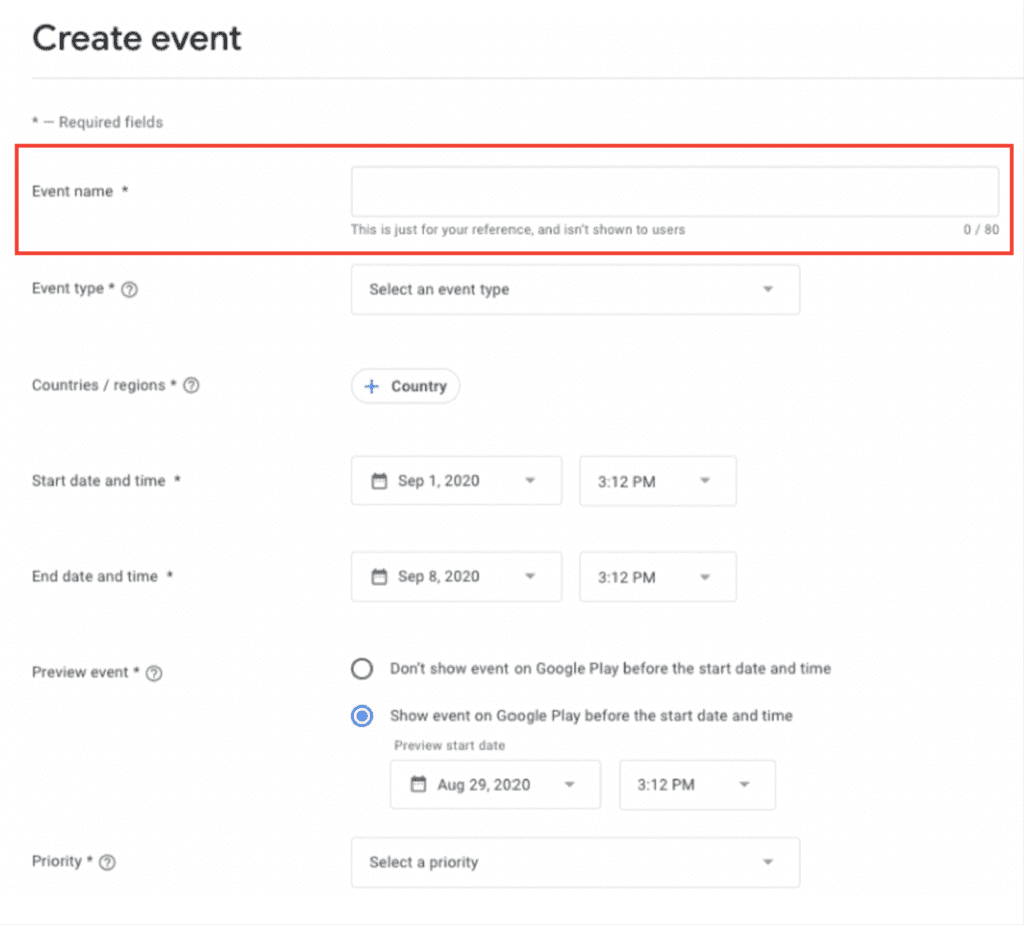
- Event name (internal): Add an internal name for your team. This name is only visible inside Play Console.
- Event type: Select the type that matches the primary value you are promoting:
- Offer for discounts, value-add bundles, free rewards, or trials (and then select the offer sub-type).
- Time-limited event for in-app moments such as competitions, challenges, or special live experiences.
- Major update for substantial feature releases, significant content drops (for example, a new season), or pre-registration announcements.
- Countries/regions: Choose where the event will be shown. You can group countries to share timing, or configure schedules separately where needed.
- Schedule: Set your start and end date/time.
- Most events run for a maximum of 4 weeks.
- Offers can be configured with no end time in some cases.
- Preview event (if eligible): If available, enable preview to show the event up to 14 days before it starts so users can opt in for notifications.
Step 3: Define audience targeting and deep linking
This is where you decide who sees the event and what happens when they tap.
Audience targeting
Choose the broadest audience only when the event is relevant to everyone. If the value is specific to a user segment, targeting improves relevance and reduces mismatch.
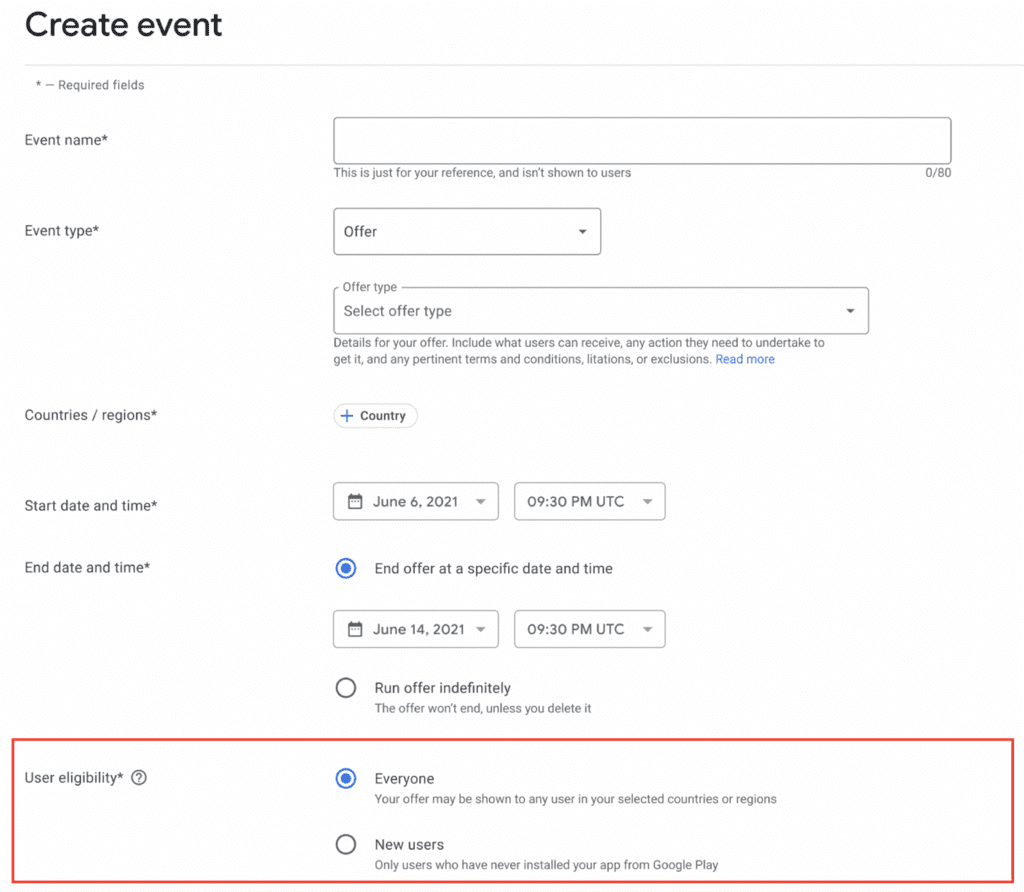
- Everyone: existing users and potential installers.
- Potential users: users who have never installed the app.
- Specific audiences: groups based on user state (for example, churned or lapsed users) or buyer state (for example, non-buyers or lapsed buyers). Buyer-state targeting requires Google Play billing.
Deep link (optional, recommended)
Add a deep link if you want users to land on the exact screen where the promotion happens, rather than your default entry point.
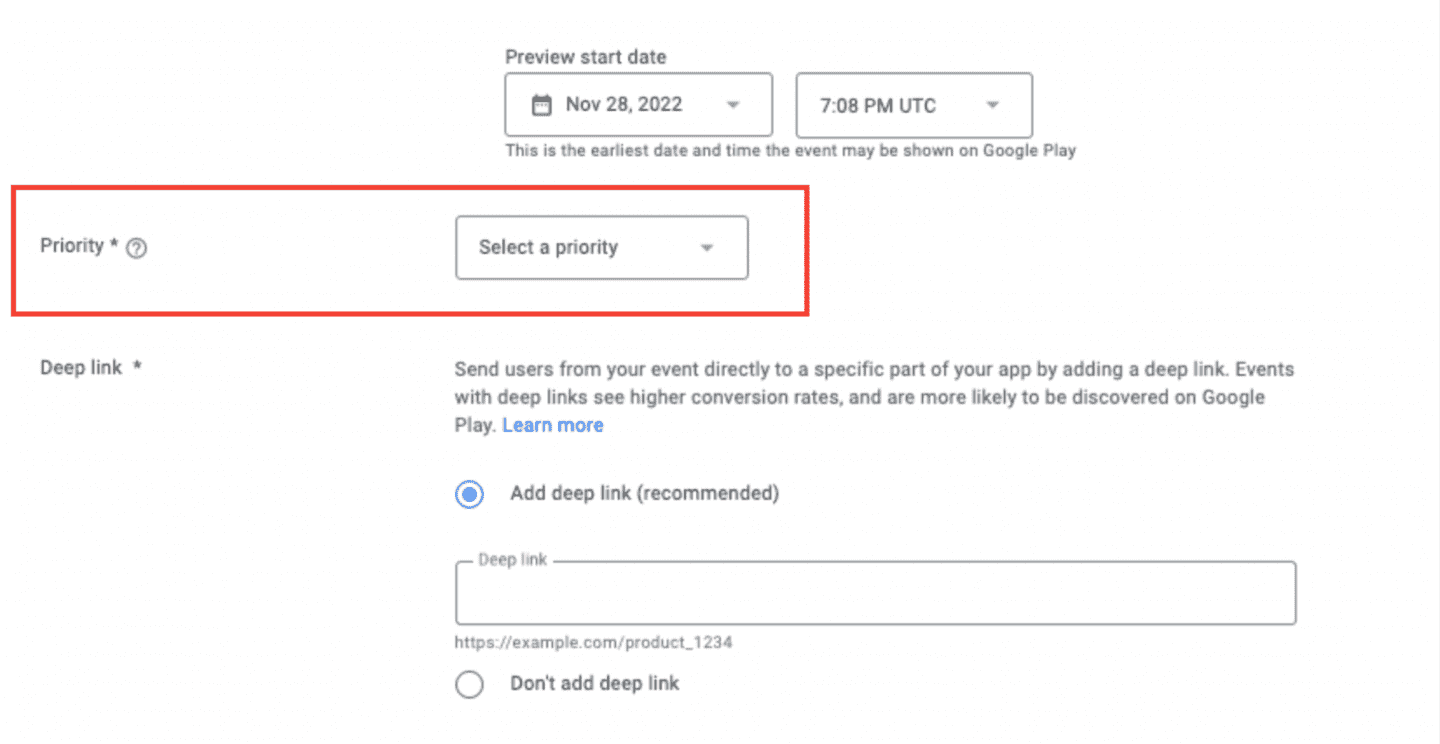
- Use Android App Links or a custom scheme.
- Avoid third-party deep link solutions that rely on redirects.
- You can configure only one deep link per event.
Step 4: Request featuring (optional)
If you want additional distribution, you can request that Google feature the event.
- Featuring is quota-limited and resets quarterly.
- To request featuring, you typically set the event priority to High Priority and submit earlier (commonly at least 14 days before the start date).
- Use featuring requests selectively for your most important launches or promotions, since quota slots are limited and placement is not guaranteed.
Step 5: Add creative assets (text and visuals)
Assets are the most common point of failure in review. Treat this step as a quality gate: if your copy is vague or your visuals break formatting rules, the event may be rejected or limited to store listing placement.
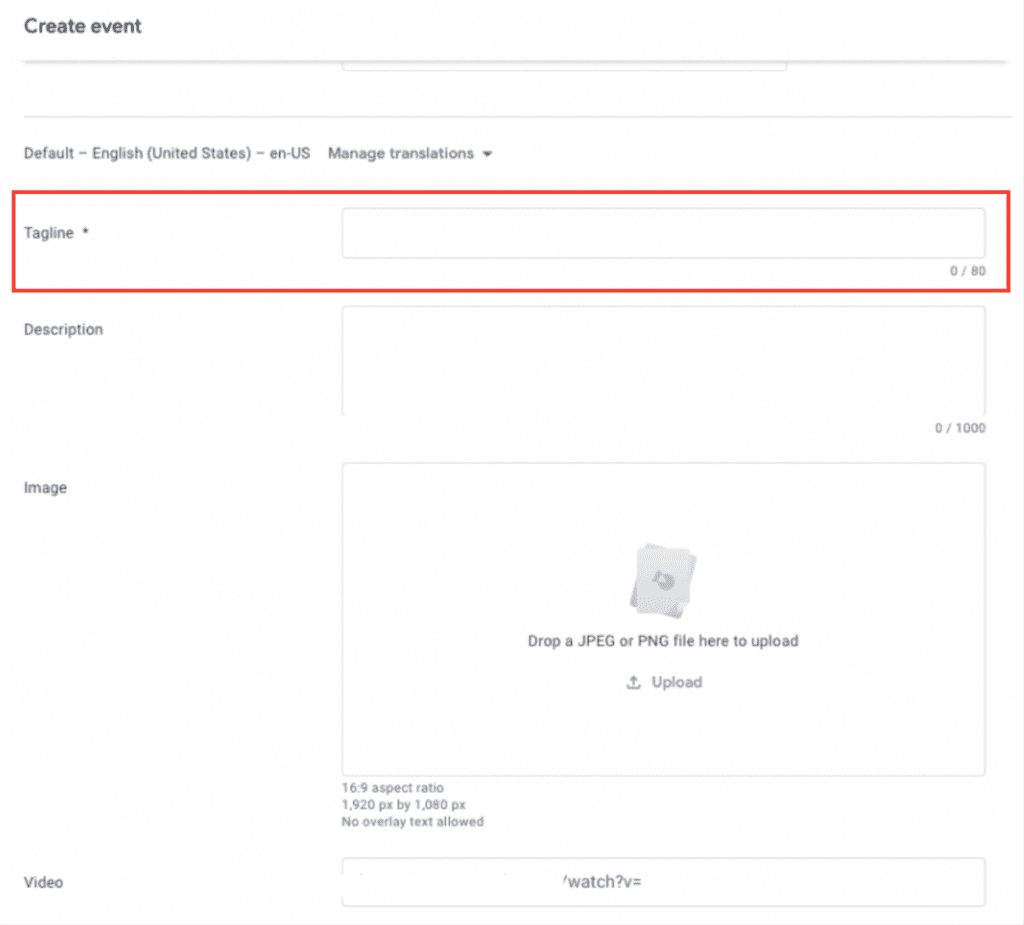
Text assets
- Tagline (required): Max 80 characters. Make it specific and informative. For Offers, state the value clearly (for example, “20% off annual plan”). Avoid generic labels such as “Weekly event.”
- Description (required): Aim for 100–500 characters. Explain what the promotion is, why it matters to the user, and how to participate or redeem. Do not repeat the tagline text.
Visual assets
- Primary image (required): 1920 × 1080 (16:9), JPG or 24-bit PNG. Do not include text, logos, or CTA-style elements. Keep key elements centered so they are not lost to cropping.
- Square image (required): Used in certain lists and surfaces. Apply the same “no text” and composition rules.
- Video (recommended): YouTube link, landscape orientation, set to Public or Unlisted. Monetization must be off for eligibility.
- Animated image (optional): Lottie animation within platform limits (for example, short duration and small file size), with no text or UI-like elements.
Step 6: Localize (recommended)
If you target multiple countries, localize your promotional content rather than relying on one default language.
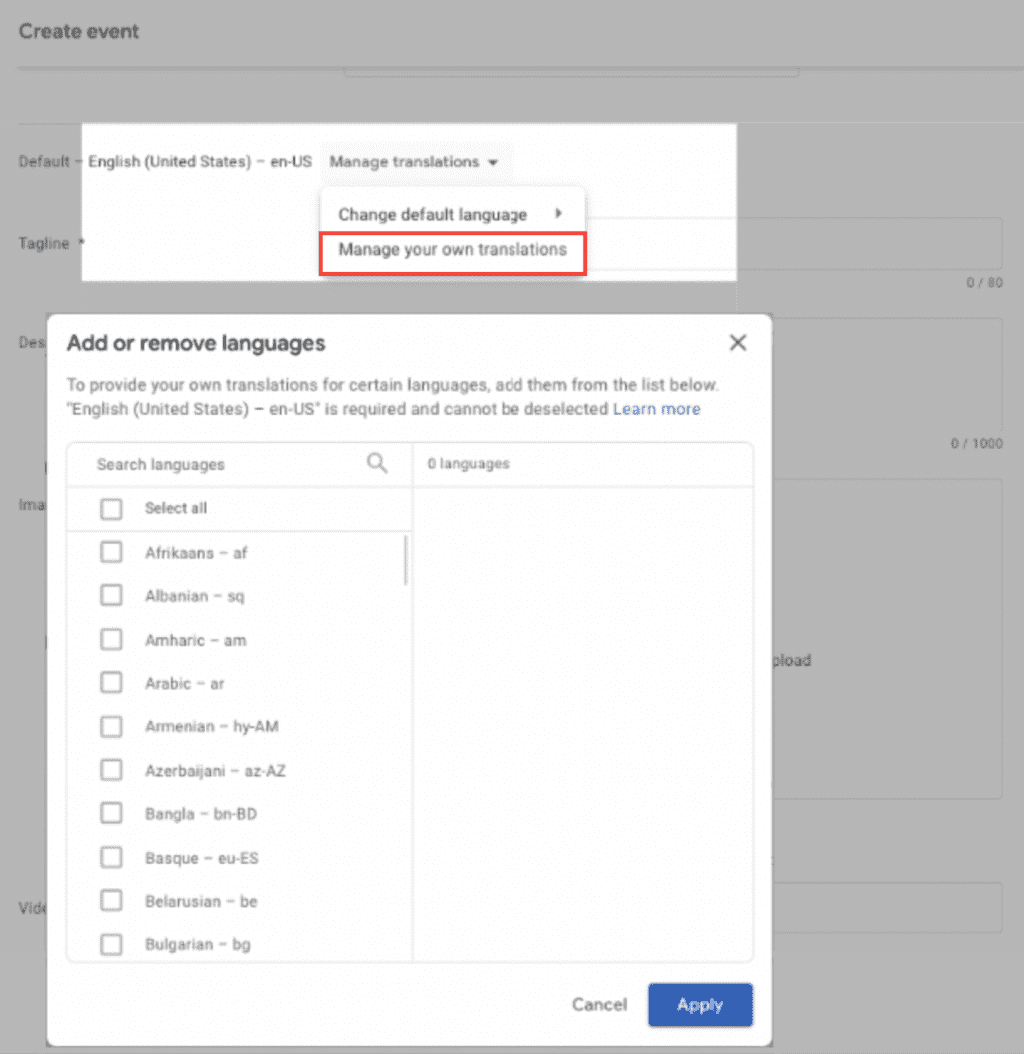
In Play Console, go to Manage translations → Manage your own translations, then provide localized taglines, descriptions, and any required assets for each language. Poor localization or text placed in the wrong language field is a common reason for warnings and rejections.
Step 7: Review and submit
Before submitting, do a final pass focused on the items you typically cannot change later:
- Classification matches the primary value (Offer vs Event vs Major update).
- Dates, regions, and audience targeting are correct.
- Deep link is valid and points to the right destination.
- Assets meet “no text” and technical specs requirements.
- Localization is complete for targeted countries.
When you are ready, click Submit event. After submission, event details generally cannot be edited. If you discover an error, the usual path is to create a new event (often by copying), apply changes, and resubmit.
Content restrictions to keep in mind
Promotional content is intended for fresh, time-bound moments. Avoid submissions that are:
- Evergreen or routine (always-on programs, general app descriptions).
- Misclassified (for example, deal-heavy content submitted as an Event).
- Non-compliant by category (for example, Offer rules not met).
- Restricted by policy (for example, certain financial products or exclusionary dating app targeting language).
If you align classification, timing, targeting, and assets from the start, you reduce the risk of review issues and improve the chance of distribution beyond your store listing.
Measuring promotional content performance on Google Play
To measure the performance of your promotional content, use Play Console → Grow users → Store performance. You will work with two main views:
- Overview for high-level summaries and featuring signals
- Promotional content reports for detailed, event-level analysis
Use the Overview to understand direction quickly, and the reports to diagnose specific performance drivers.
1. High-level performance (Overview)
The promotional content overview page summarizes how your content contributes to mobile acquisition and engagement.
Key metrics
- Total unique viewers: The number of unique users who saw your promotional content card. This measures users, not impressions.
- Total unique converters: The number of unique users who clicked Install, Open, or Update.
Use viewers to assess reach and converters to assess response. A large gap between the two usually indicates a relevance or messaging issue.
Featuring uplift
If your content is featured, Google Play may show Featuring uplift, which estimates incremental impact using a holdback control group. Results may appear as recent, past, or potential uplift, depending on data availability.
Treat uplift as a directional signal rather than a standalone success metric.
2. Event-level analysis (promotional content reports)
For deeper analysis, open promotional content reports and filter by event, country, or audience.
Core metrics
- Viewers: Users who saw the card or event details page
- Converters: Users who clicked the call-to-action
- Conversion rate: Converters divided by viewers
If viewers are low, distribution may be limited. If conversion rate is low, review event clarity, creative alignment, and post-click experience.
3. Performance by user segment
Reports break down results by user state, which determines the call-to-action shown:
- Acquisition: Users without the app (Install)
- Re-engagement: Users with the app (Open / Play)
- Updates: Users on outdated versions (Update)
This breakdown helps you understand whether the event is driving new installs or reactivating existing users.
4. Engagement uplift (Active Days)
To assess impact beyond clicks, use the Uplift view, which measures changes in Active Days using a holdback comparison.
Results are typically labeled as:
- Conclusive
- Inconclusive
- Insufficient data
Weak or inconclusive uplift often points to issues in the in-app experience rather than store visibility.
5. Video performance (if applicable)
If your promotional content includes YouTube video assets, you can review:
- Total unique clickers
- Click-through rate (CTR)
These metrics help validate whether video improves intent and clarity.
6. Exporting data
For external analysis, you can export data via:
- CSV downloads from the reports interface
- Cloud Storage exports for aggregated, programmatic access
Exports are useful for comparing events, tracking trends, and combining store metrics with in-app data.
How MobileAction helps you analyze Google Play promotional content
Google Play reports focus on your own promotional content, but they don’t show how other apps are using Offers, events, or major updates across the store.
MobileAction lets you track Google Play promotional content at the category and app level, so you can see which promotion types competitors use, when they run them, and how frequently they update their store presence. This helps you benchmark your strategy and avoid relying on isolated experiments.
Conclusion
In-App Events and promotional content help you surface what’s happening now on the App Store and Google Play, but they only work when they’re planned with each platform’s rules in mind. Apple prioritizes real, time-bound in-app experiences, while Google Play gives you more flexibility to promote value through events, updates, and offers. Using the right format, clear messaging, and a strong post-tap experience is what turns visibility into real results.
Sign up to MobileAction to track In-App Events and promotional content across apps, categories, and competitors, and turn store activity into a repeatable growth strategy.
If you want this shorter, more confident, or more product-marketing, I can tighten it one more notch.
Frequently asked questions
1. Can I promote the same event on both the App Store and Google Play?
Yes, but you should not copy the setup directly. Apple App Store In-App Events must represent a real, time-bound in-app experience and follow editorial rules. Google Play promotional content can focus on events, updates, or offers. Adapt the message, classification, and assets to each store’s requirements.
2. Do App Store In-App Events support discounts or sales?
Not as standalone promotions. Apple does not allow events that are purely price-driven. Discounts are acceptable only when they are part of a broader, time-limited in-app experience (for example, new content that includes a special offer).
3. Why does deep linking behave differently after install on Google Play?
On Google Play, deep links from promotional content work reliably only for users who already have the app installed. For new users, the deep link does not persist through installation, so they open the app at the default entry point. This makes promotional content more effective for re-engagement than first-time acquisition.
4. How long does review usually take for each system?
For App Store In-App Events, review typically takes a few days, but timing can vary around major launches or holidays. For Google Play promotional content, standard review usually requires at least four days, with longer lead times recommended if you request featuring or high priority placement.
5. What is the most common reason events underperform on either store?
Misalignment between the promotion and the landing experience. On both stores, users expect the tap to lead directly to the advertised moment. Vague metadata, generic creatives, or deep links that land on a home screen instead of event-specific content are the most common causes of low engagement.
This handbook will serve as your roadmap, packed with emerging trends, valuable insights, and the best ASO tools & resources. It aims to help you stay ahead of the competition and enhance your app marketing strategy for substantial growth in 2025 and beyond.
Resources that you'll love

Grow your app on the App Store and Google Play Store with our solutions now